
Opening a Database
Cordelia isn't available for macOS yet.
To reopen a database you've already created:
- Choose Database in the navigation panel.
- Choose Open.
This is the same panel shown in Creating a
Database, before either button has been used. An "open file" dialog lets you pick the
existing .sqlite file, filtered to that extension.
As when creating a database, the panel shows no buttons while an import or export is running.
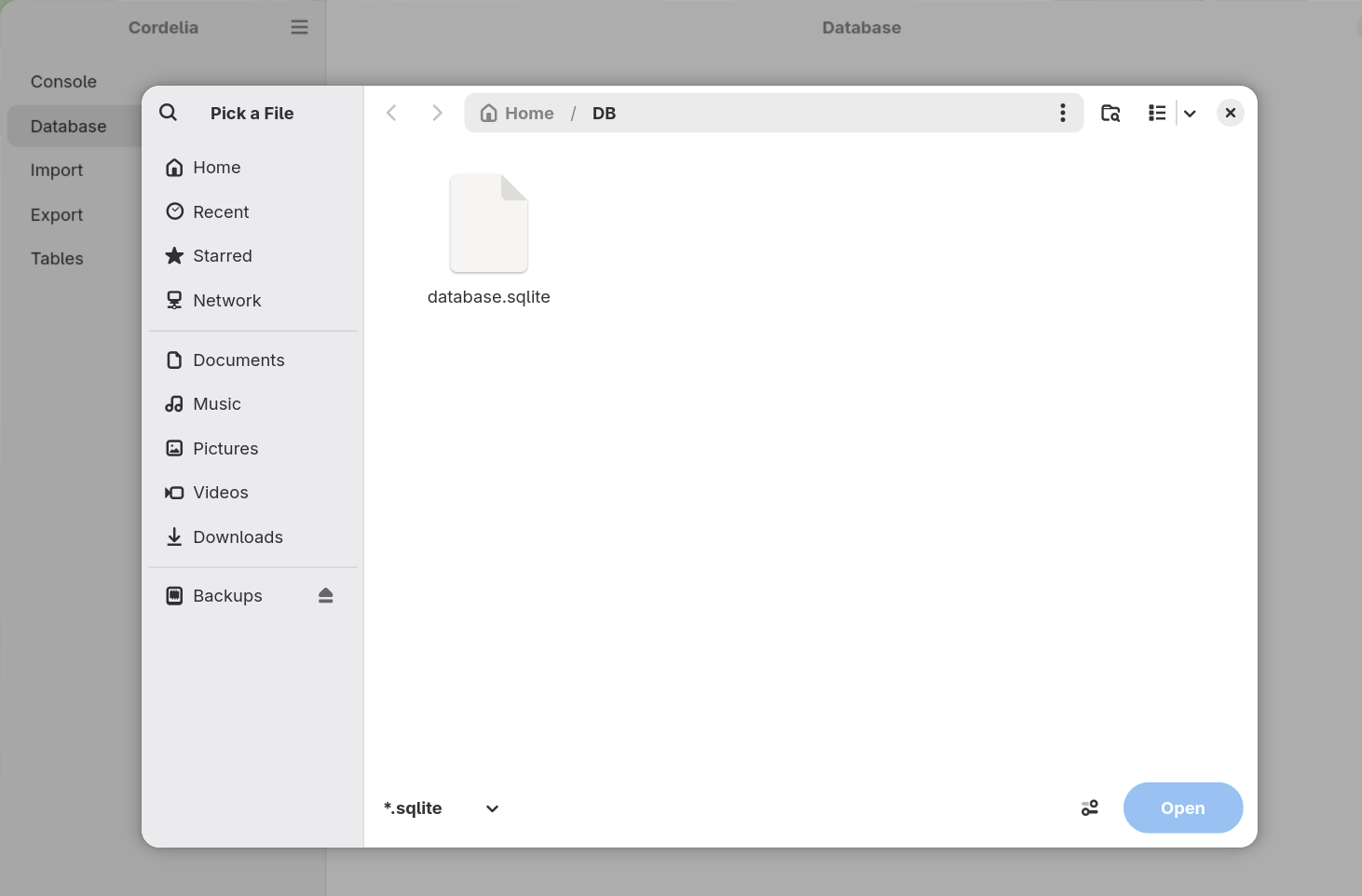
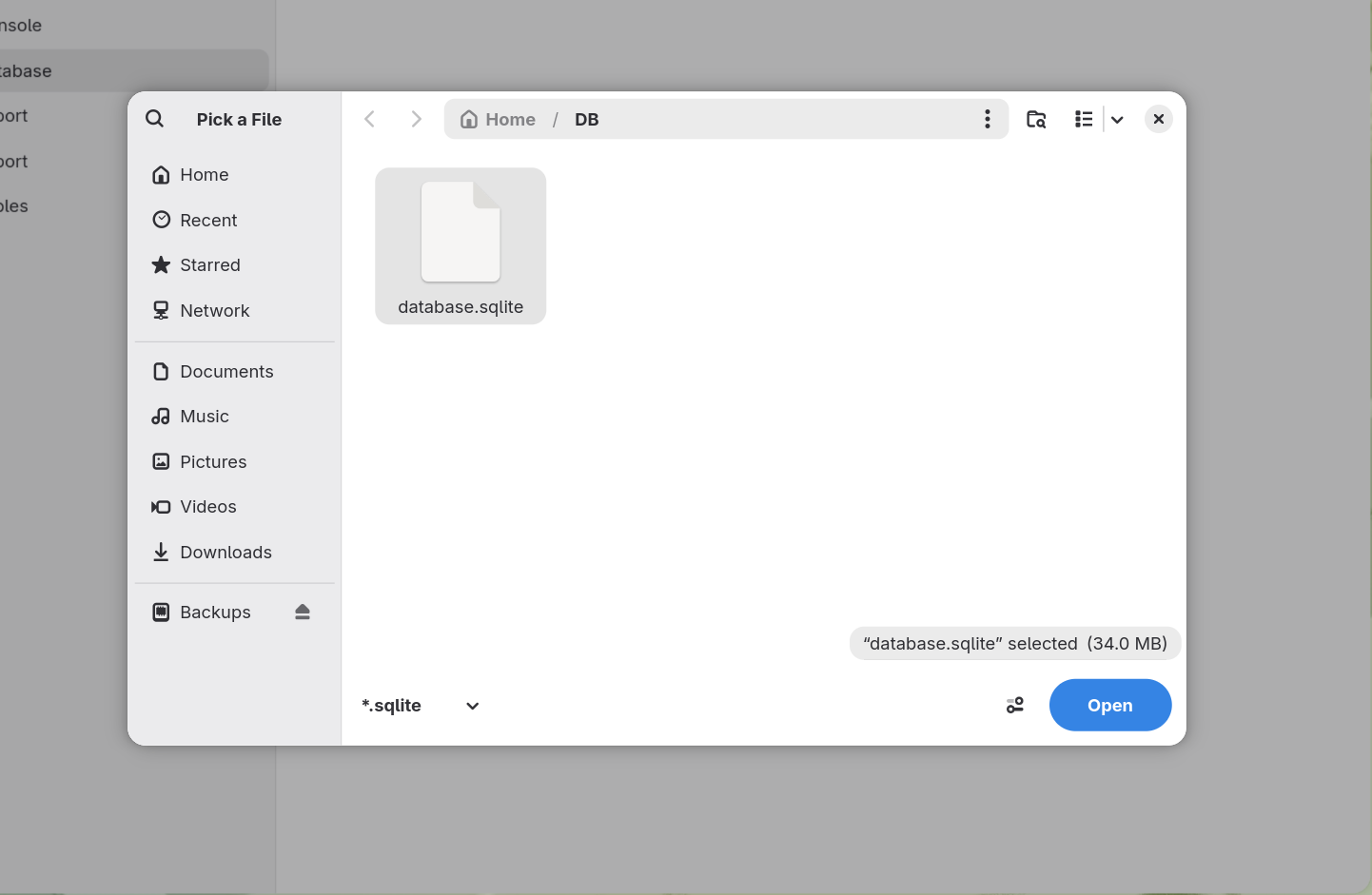
Once a .sqlite file is selected, Open becomes active:
To reopen a database you've already created:
- Choose Home in the navigation panel.
- Under Open database, choose Open…, or press Ctrl + O.
Pick the existing .sqlite file.
Why Cordelia checks the file first
Cordelia only opens files that match its own database structure. A SQLite file from another program, however valid, is rejected with a clear message rather than opened anyway.
What happens next
Opening behaves just like creating a database. Progress is reported in the console panel, and the file becomes your open database, ready to import, export or review.
Nothing to open yet? Try a ready-made example database.