Error Messages
What Cordelia's red console lines and error dialogs mean, and what to do about each one.
Errors vs. warnings
Errors stop the current operation; warnings do not. Errors appear in red in the console panel, and the more disruptive ones also show a dialog with an OK button.
Database file problems
| Message | When you'll see it | What to do |
|---|---|---|
This file is not a Cordelia database: <path> |
Opening a database | The chosen file is valid SQLite, but wasn't created by Cordelia. Pick a
.sqlite file that Cordelia itself created (see
Creating a Database), or create a new one. |
Permission denied writing to <path> |
Creating a database or exporting | Cordelia doesn't have permission to write to the chosen location. Choose a folder you have write access to, such as your Documents folder. |
Not enough disk space to write <path> |
Creating a database or exporting | Free up space on the target drive, or choose a location on a drive with more room, then try again. |
<Format> export failed / FIT export failed |
End of an export | The export didn't complete. Check the console for the specific underlying reason (often one of the file problems above) and confirm the destination folder is writable. |
Database integrity problems
These are more serious than the file problems above: Cordelia stops immediately rather than risk writing more data into a database file it can no longer trust.
| Situation | What Cordelia does | What to do |
|---|---|---|
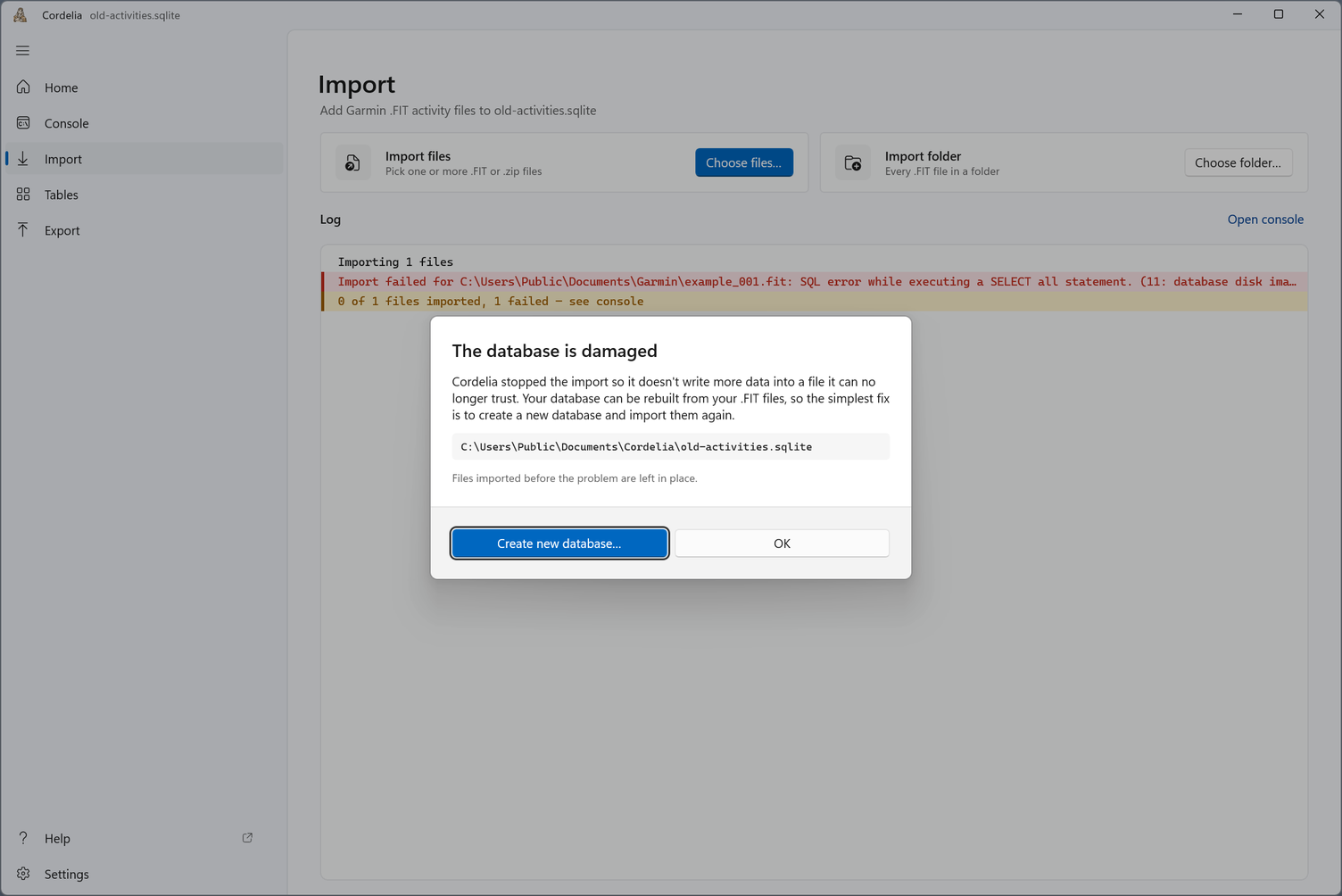
| The database file is corrupted. Its internal structure no longer makes sense to SQLite. Rare, but can follow a crash mid-write or a failing disk. | Stops the current operation immediately. | Since the database is entirely regenerated from your .FIT files (see
The Cordelia Generated SQLite Database), the simplest fix
is to create a new database and
re-import your files. |
| The disk fills up while Cordelia is writing to the database (as opposed to a one-off export file, covered above). | Stops the current operation immediately. | Free up disk space and try again. Already-committed rows are left in place, not rolled back. |
| The selected file isn't a database at all, or is damaged beyond recognition as one. | Stops the current operation immediately. | Double-check you selected the right file; otherwise, create a new database. |
| An I/O error occurs while reading or writing the file, often a sign of a failing or disconnected drive, or a network-mounted location. | Stops the current operation immediately. | Move the database to a local drive and try again; check the drive's health if this keeps happening. |
On Windows, a damaged database also opens this dialog. Create new database… starts the fix.
If none of this resolves it
See Bug Reports and Feature Requests. A copy of the console output (use the Copy all button described in The Console Panel) is the most useful thing to include.