
Creating a Database
Cordelia isn't available for macOS yet.
Before Cordelia can import anything, it needs a database to import into.
- Choose Database in the navigation panel.
- Choose Create.
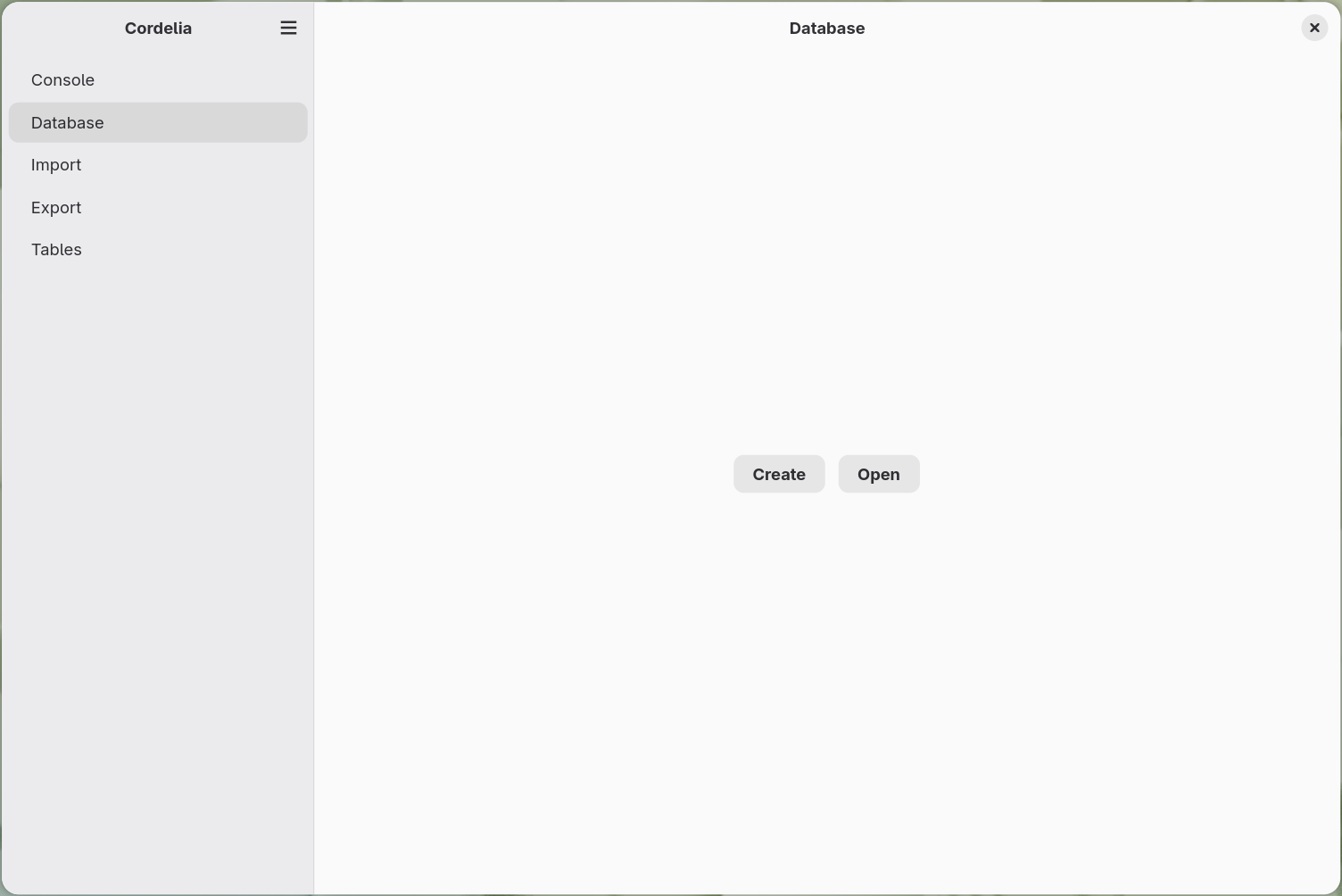
If the panel shows no buttons at all, an import or export is running. The buttons come back as soon as it finishes or you cancel it.
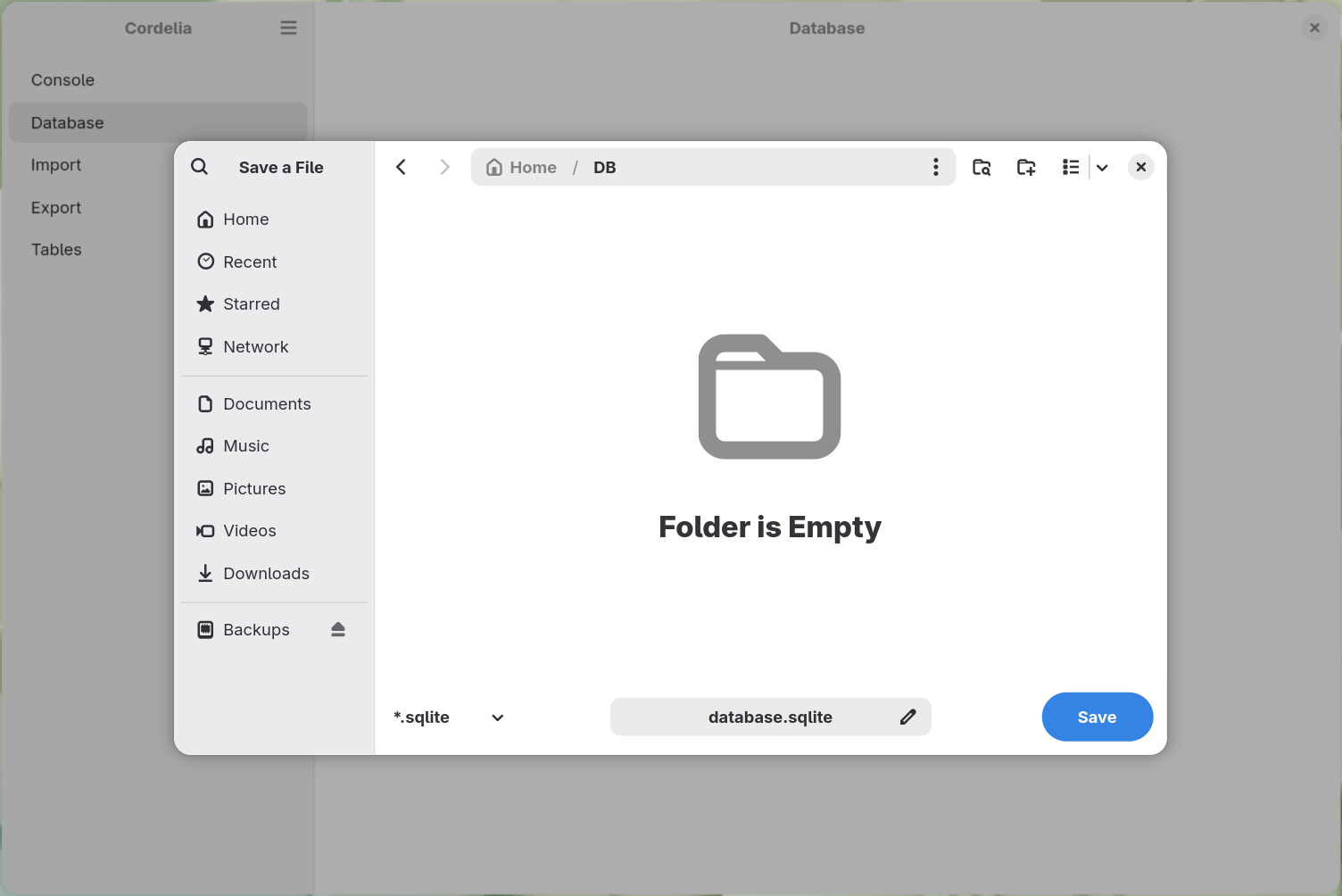
A "new file" dialog lets you pick where to save it and what to call it, with
.sqlite as the default file extension.
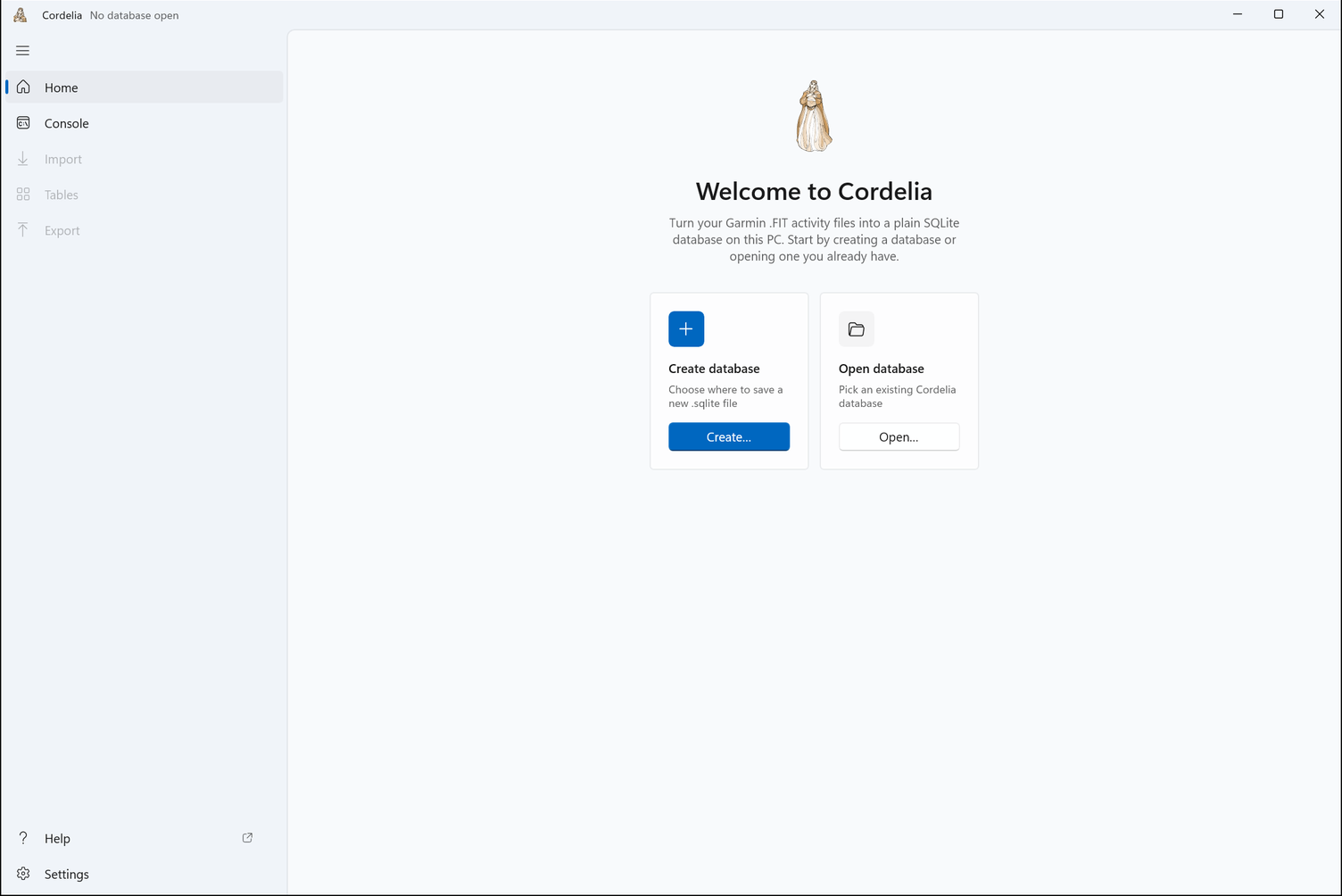
- Choose Home in the navigation panel.
- Under Create database, choose Create…, or press Ctrl + N.
Pick where to save the new .sqlite file and what to call it.
What happens next
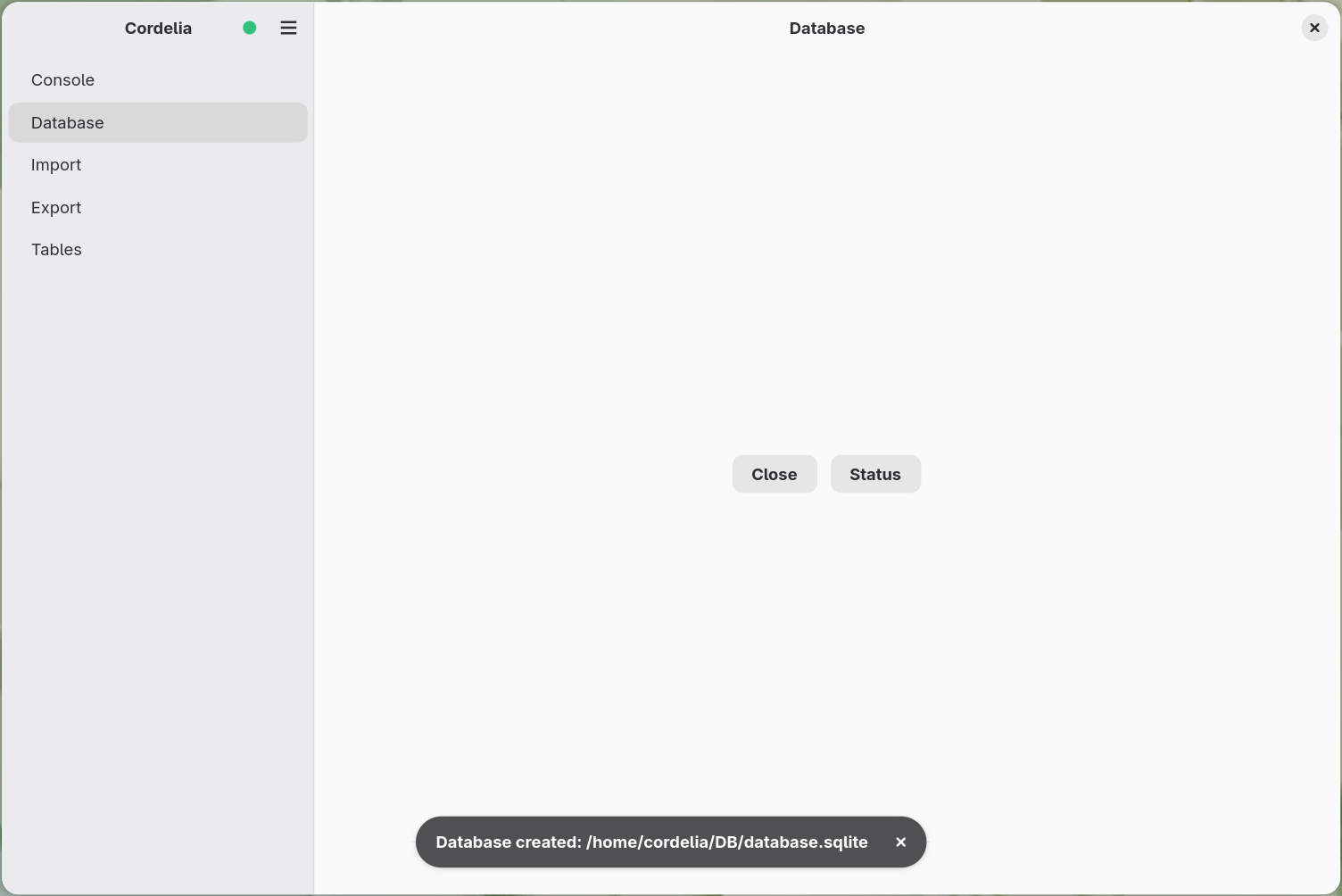
- Cordelia writes the file and creates the tables it needs.
- Progress is reported in the console panel.
- The new file becomes your open database. No separate open step.
If something goes wrong
- No permission to write to the chosen folder.
- Not enough free disk space.
Cordelia reports both rather than failing silently.
Next step
- Already have a database file from a previous session? Open it instead.
- No
.FITfiles of your own yet? Try a ready-made example database.