How to Import .FIT Files into Your Cordelia Database
Cordelia isn't available for macOS yet.
To import .FIT files:
- Create or open a database.
- Choose Import in the navigation panel.
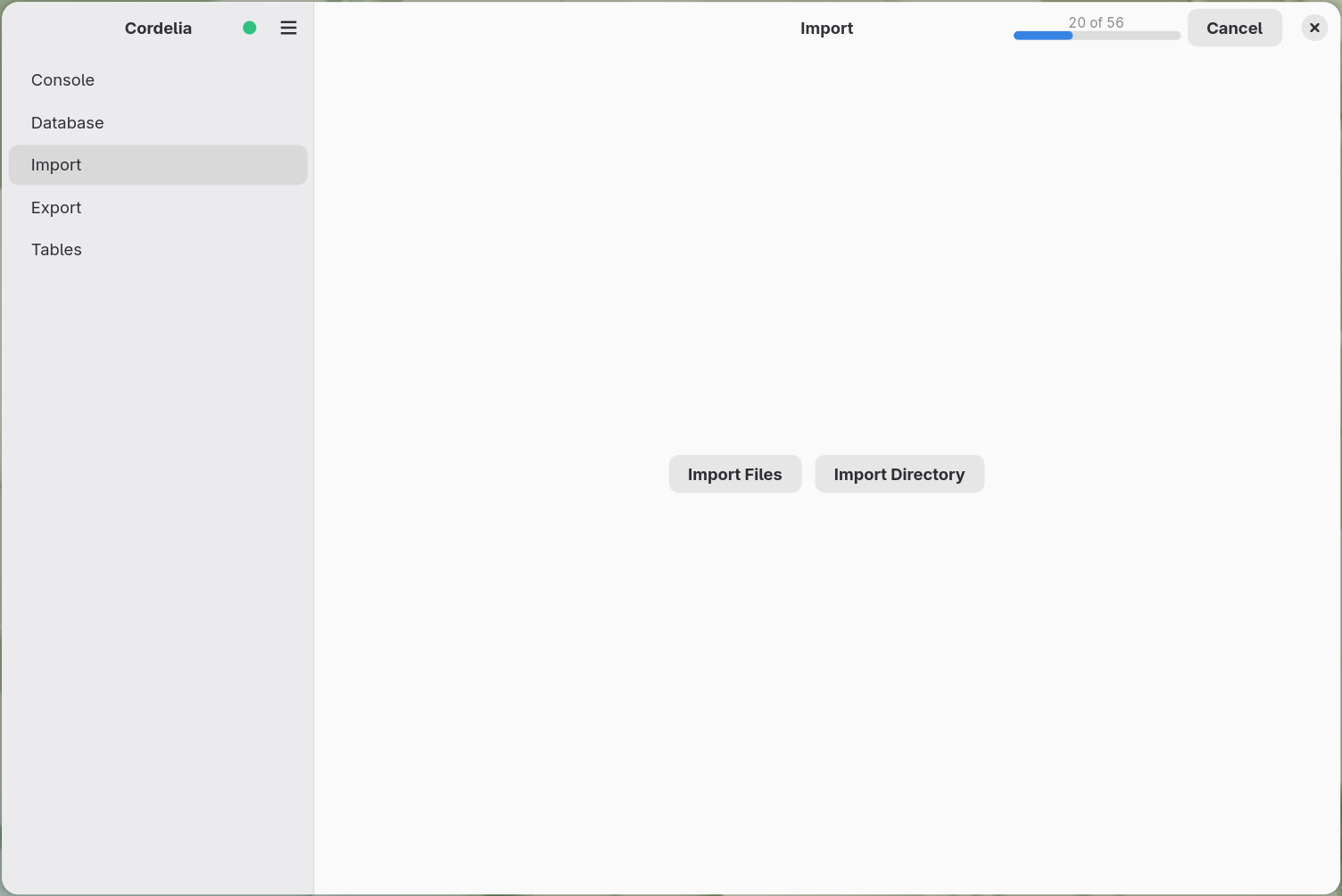
- Choose Import Files to pick one or more individual
.FITfiles, or Import Directory to import every.FITfile in a folder at once.
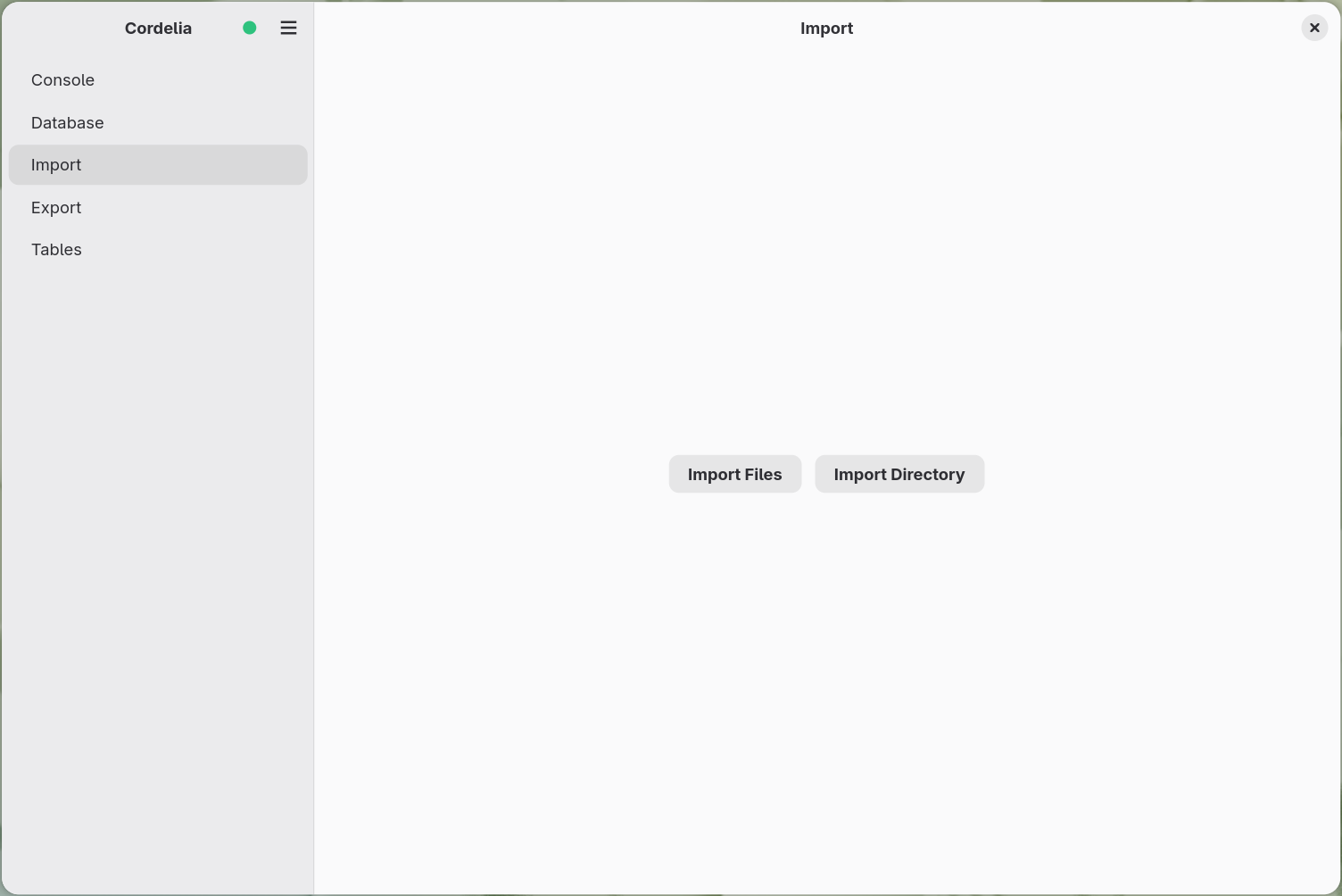
To import .FIT files:
- Create or open a database.
- Choose Import in the navigation panel.
- Choose files… picks one or more
.FITor.zipfiles. Choose folder… imports every.FITfile in a folder.
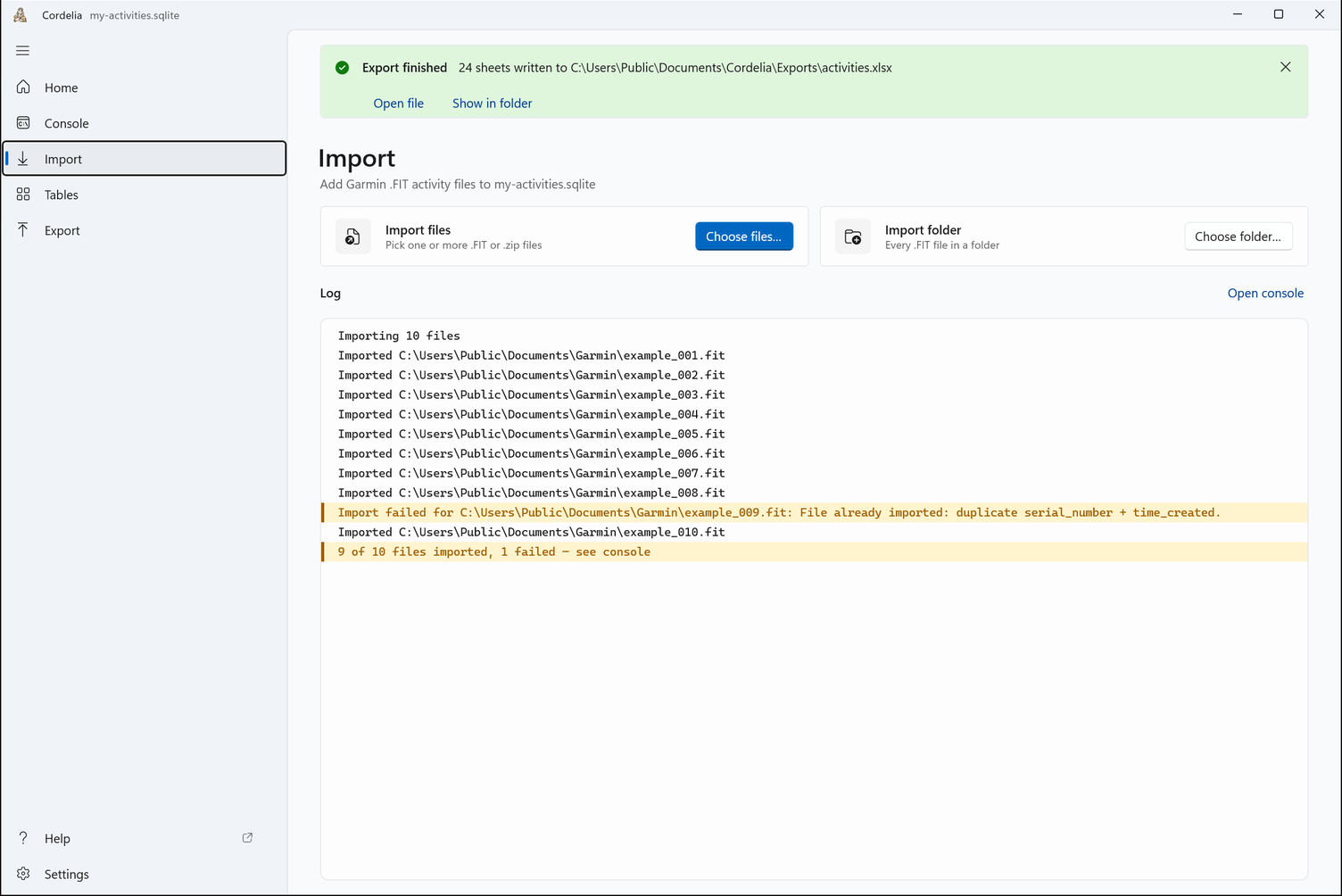
See How to Obtain Input Garmin .FIT Files first if
you don't already have .FIT files on your computer.
Importing individual files
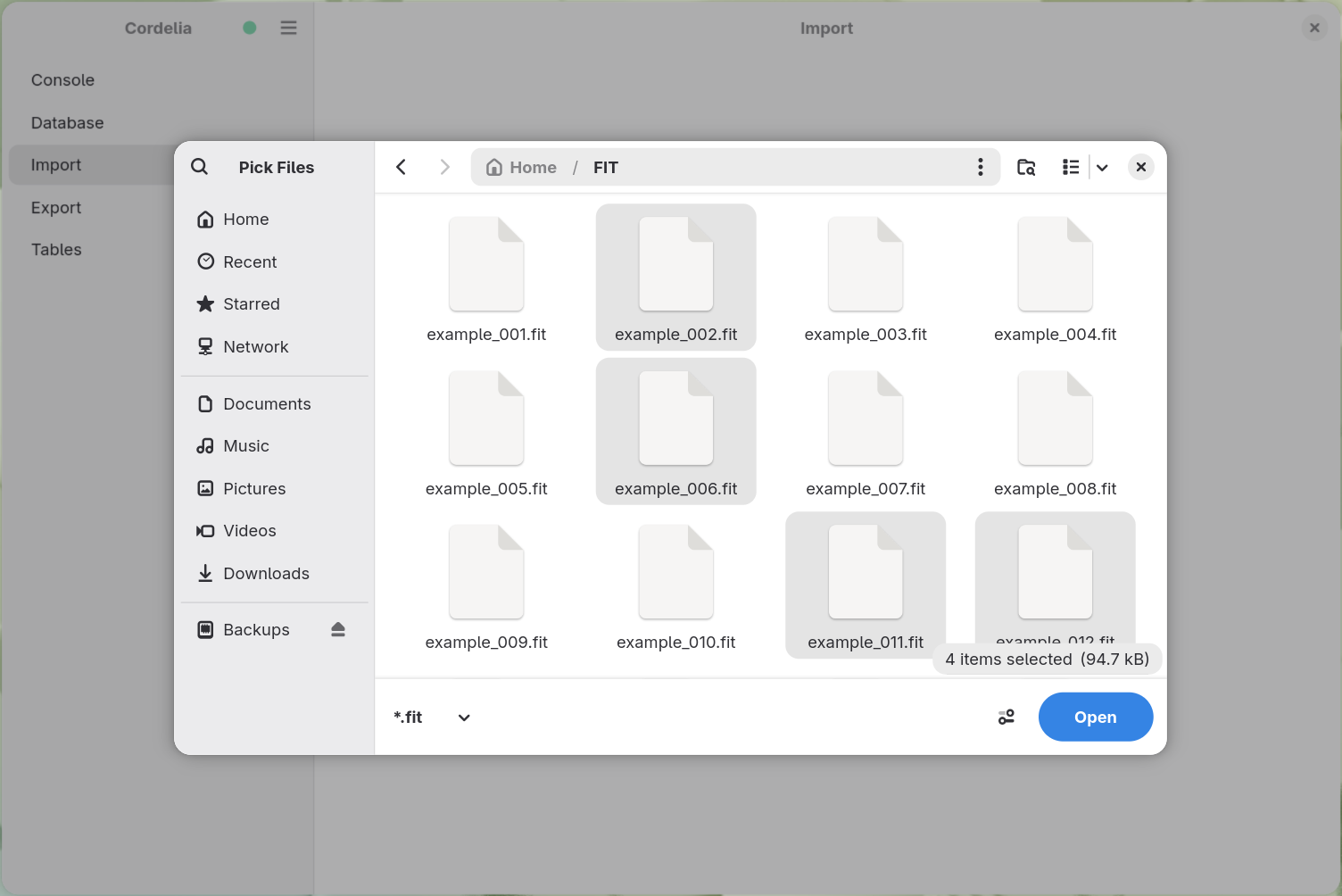
Import Files opens a standard file picker, filtered to .FIT
files, with multiple selection allowed.
Importing a whole folder
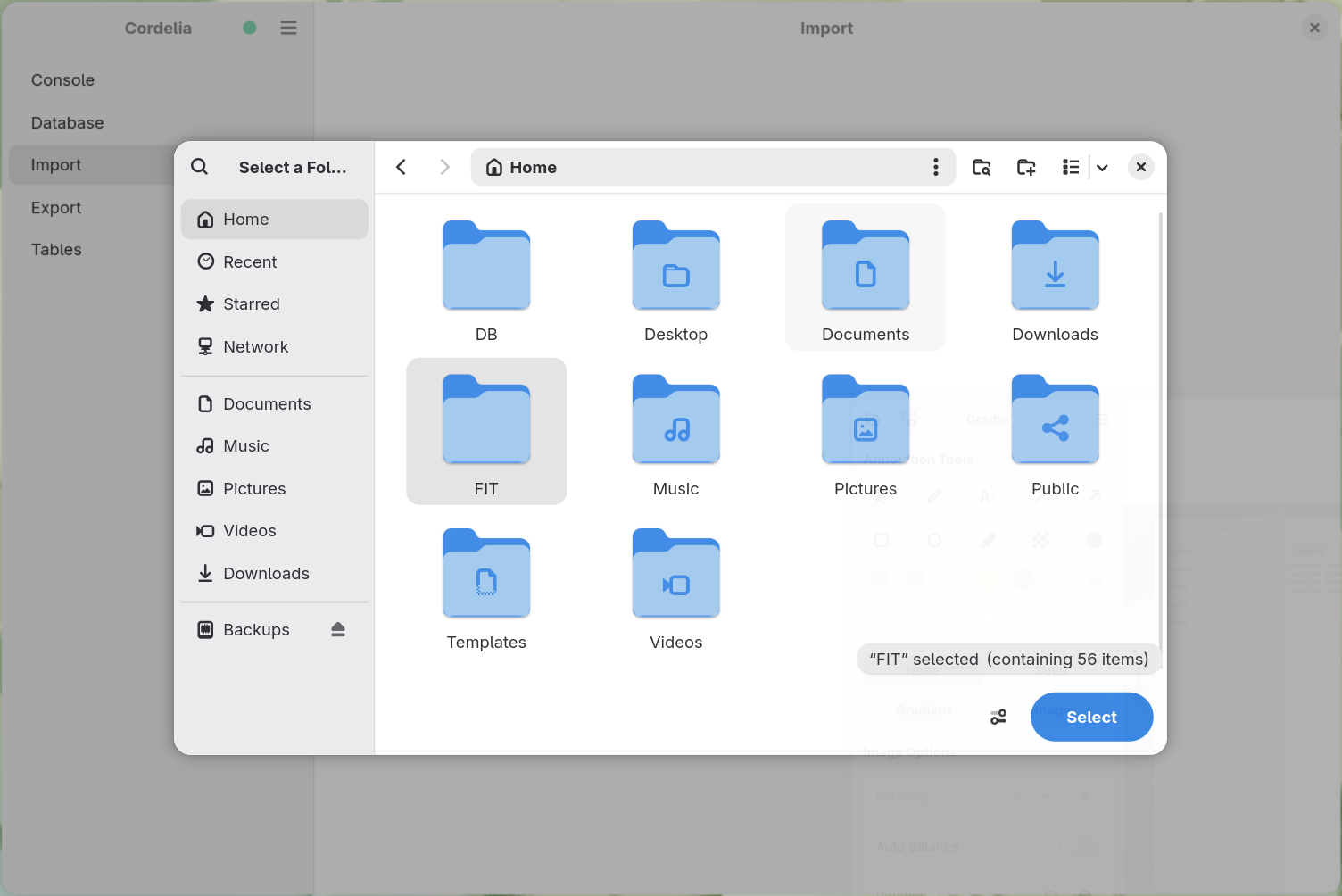
Import Directory opens a folder picker instead. Pick the folder, and
every .FIT file inside it is imported. No selecting files one by one.
While it's running
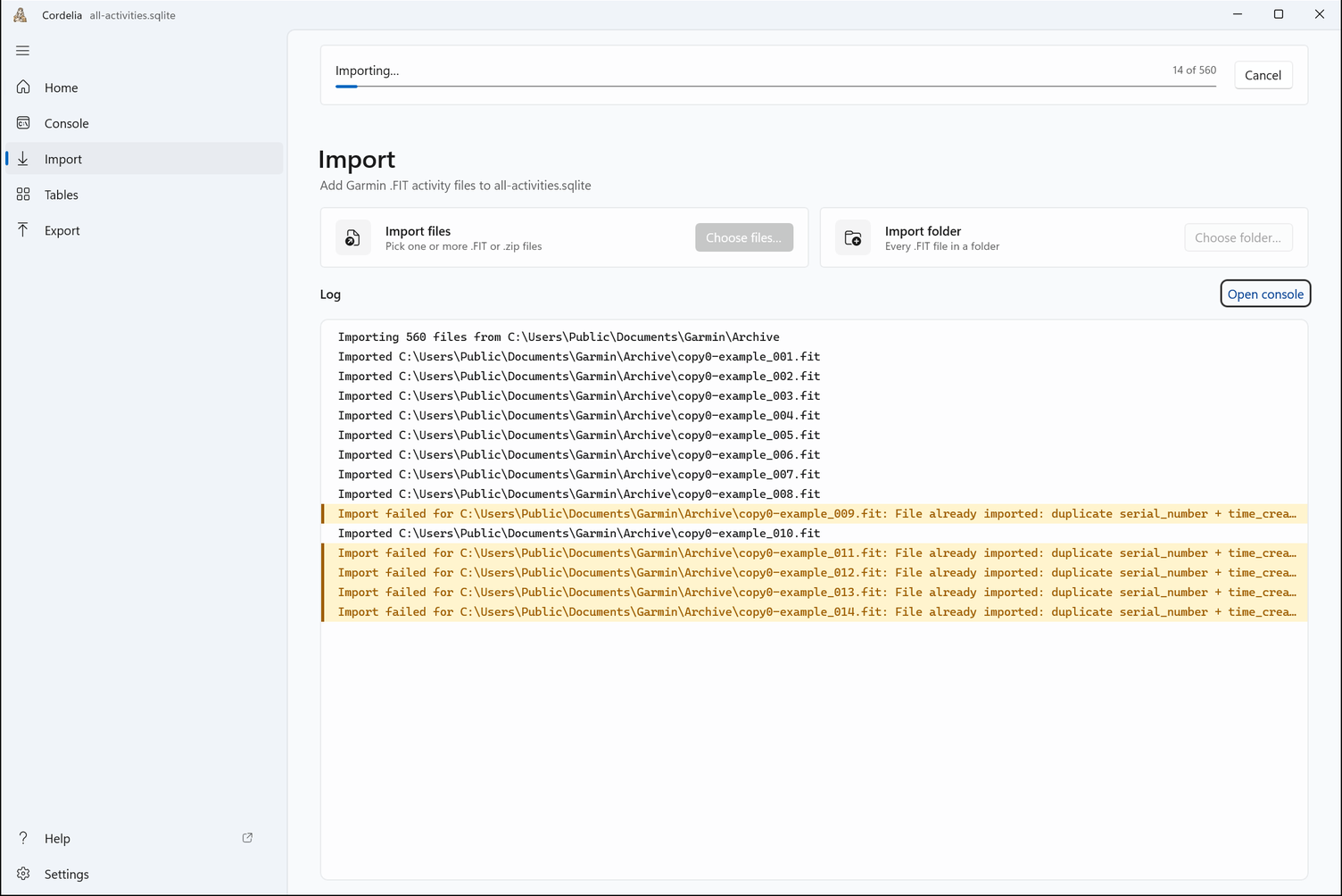
Importing a large folder can take a while. A progress bar appears in the header next to a Cancel button, along with a running "N of M" file count. See the console panel for a running account of each file as it's imported, including any that fail and why.
While an import runs, Import Files, Import Directory and the Export panel's buttons are greyed out, and the Database panel shows none of its buttons, so the database can't be closed or replaced partway through. They all come back when the import finishes or you choose Cancel.
A progress bar across the top counts the files done, next to a Cancel button. The log lists each file as it's imported.
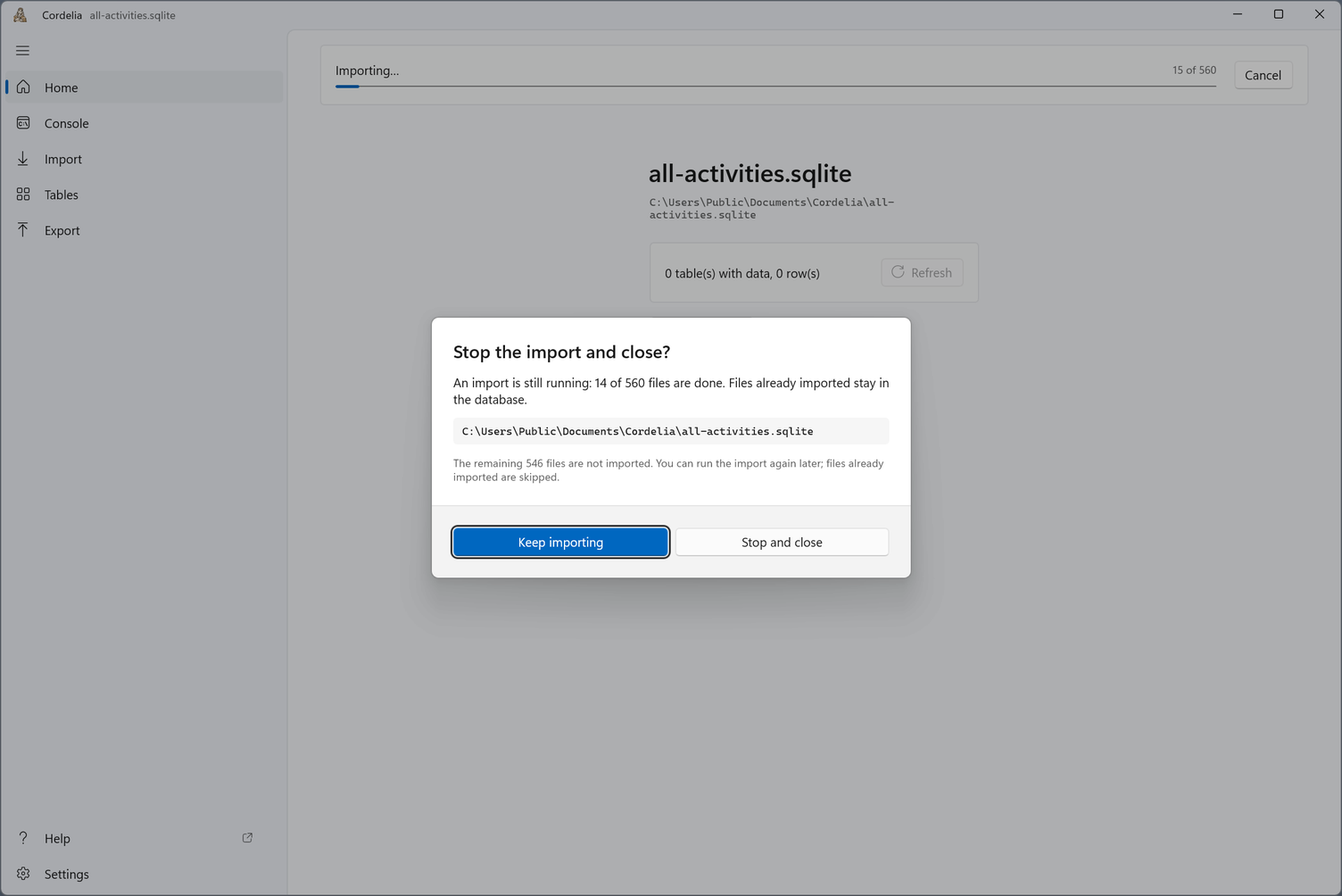
If you close the database during an import, Cordelia asks first. Keep importing carries on; Stop and close stops, and the files already imported stay in the database. Run the import again later and it skips them.
When the import ends, a banner on Home gives the result. If any file failed, What do these mean? explains why.
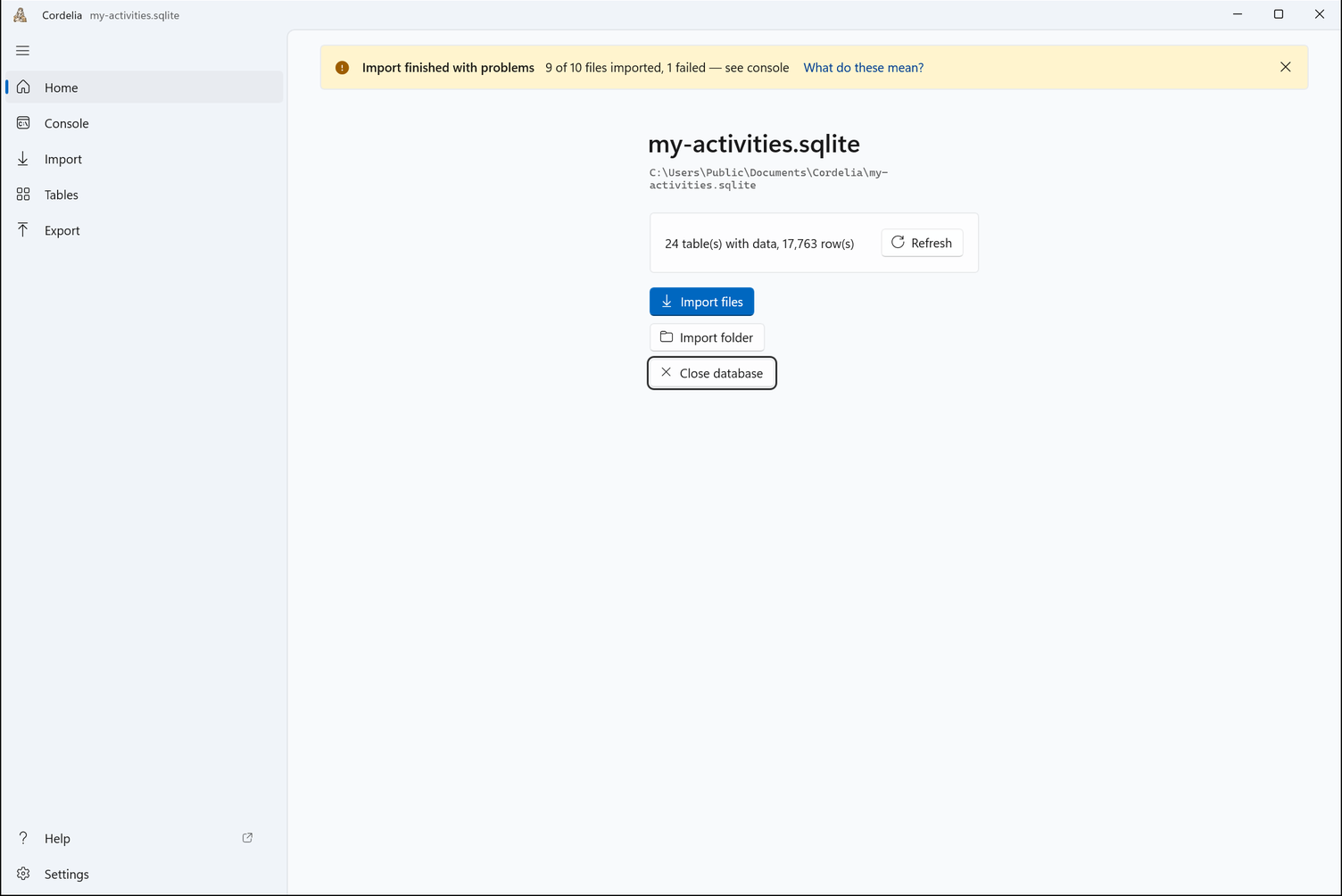
Re-importing a file that's already in the database is reported as a duplicate, not a second copy. See Warning Messages for the exact wording.