Exporting to JSON, CSV, and Microsoft Excel
Cordelia isn't available for macOS yet.
To export your data:
- Create or open a database.
- Choose Export in the navigation panel.
- Choose a format: Export XLSX, Export JSON, or Export CSV.
For .FIT export instead, see
Exporting .FIT Files.
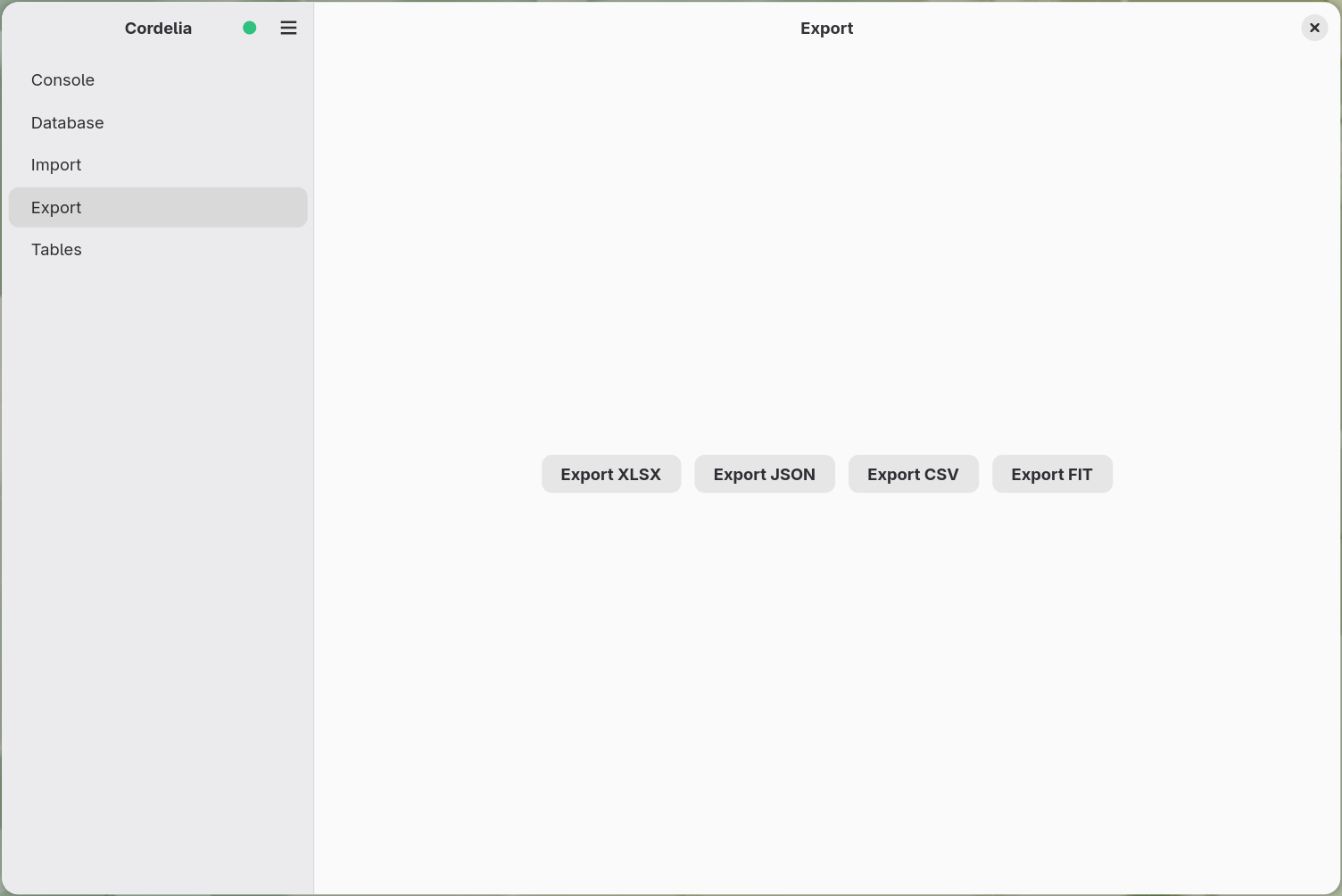
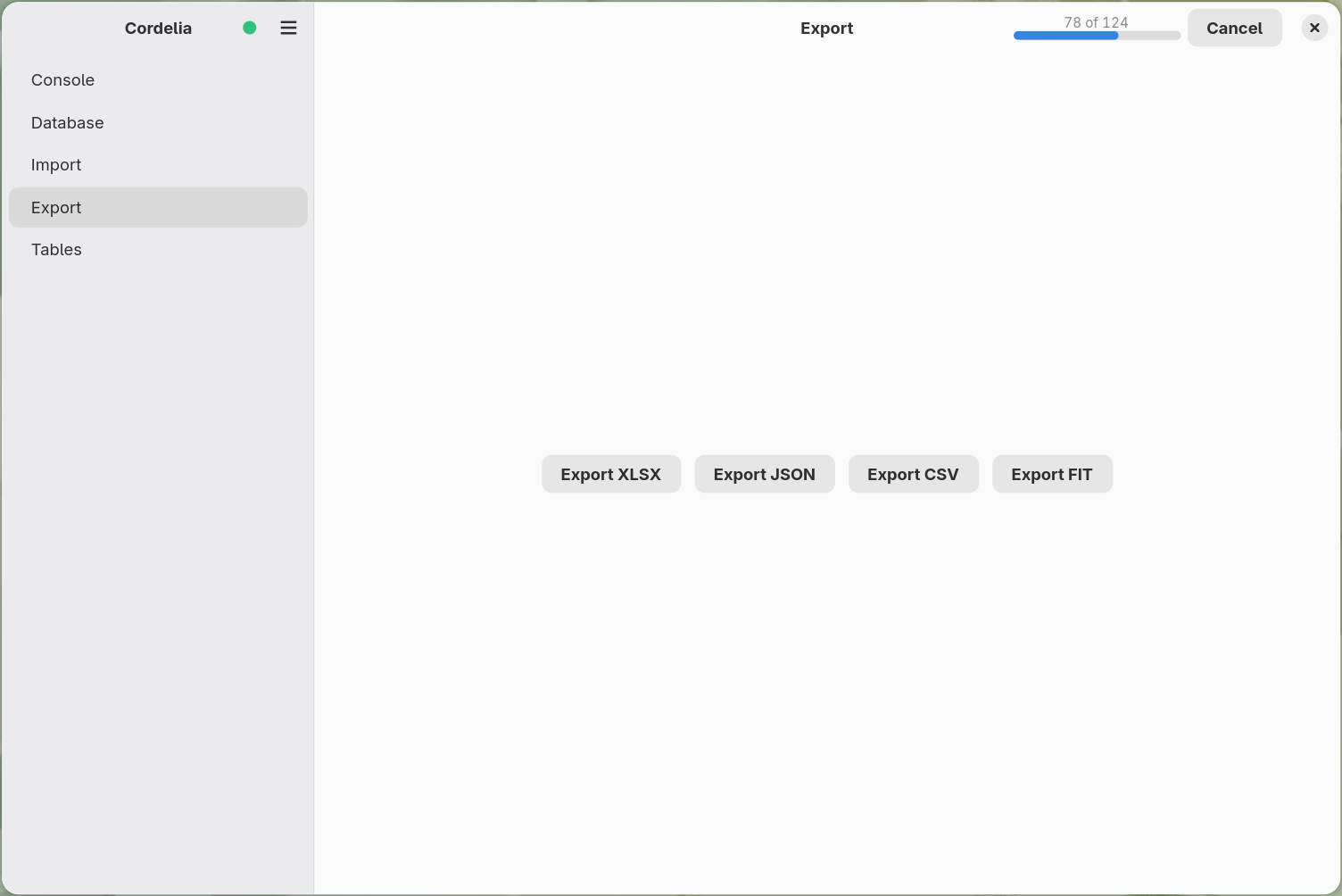
While an export runs, the export and import buttons are greyed out, and the Database panel shows none of its buttons. They come back when the export finishes or you cancel it.
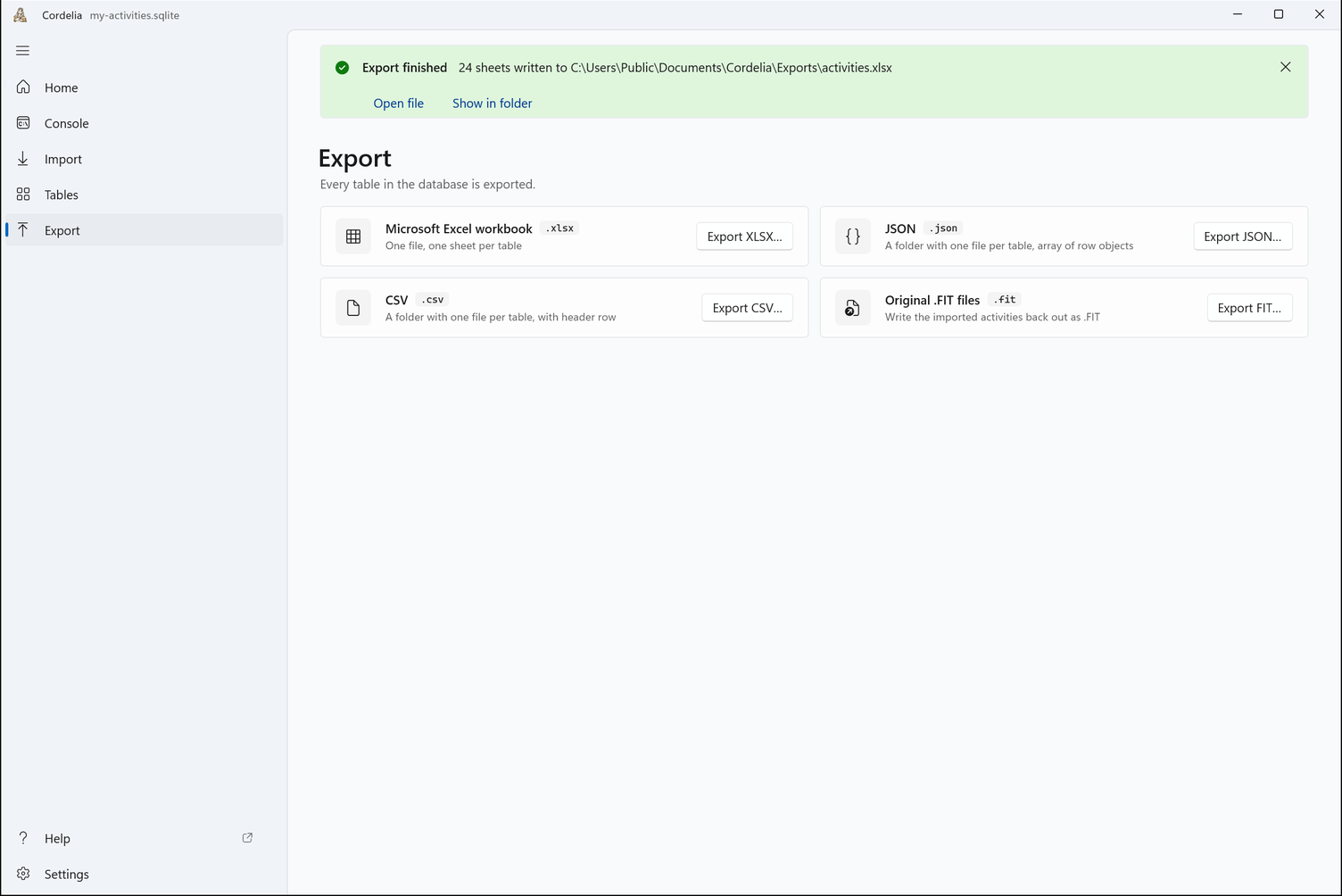
When an export finishes, a banner says where it went. After an XLSX export, Open file and Show in folder take you to it.
Every table in the database is exported. There's no per-table selection step. Progress for large exports is reported in the console panel, the same as for imports.
Exporting to CSV
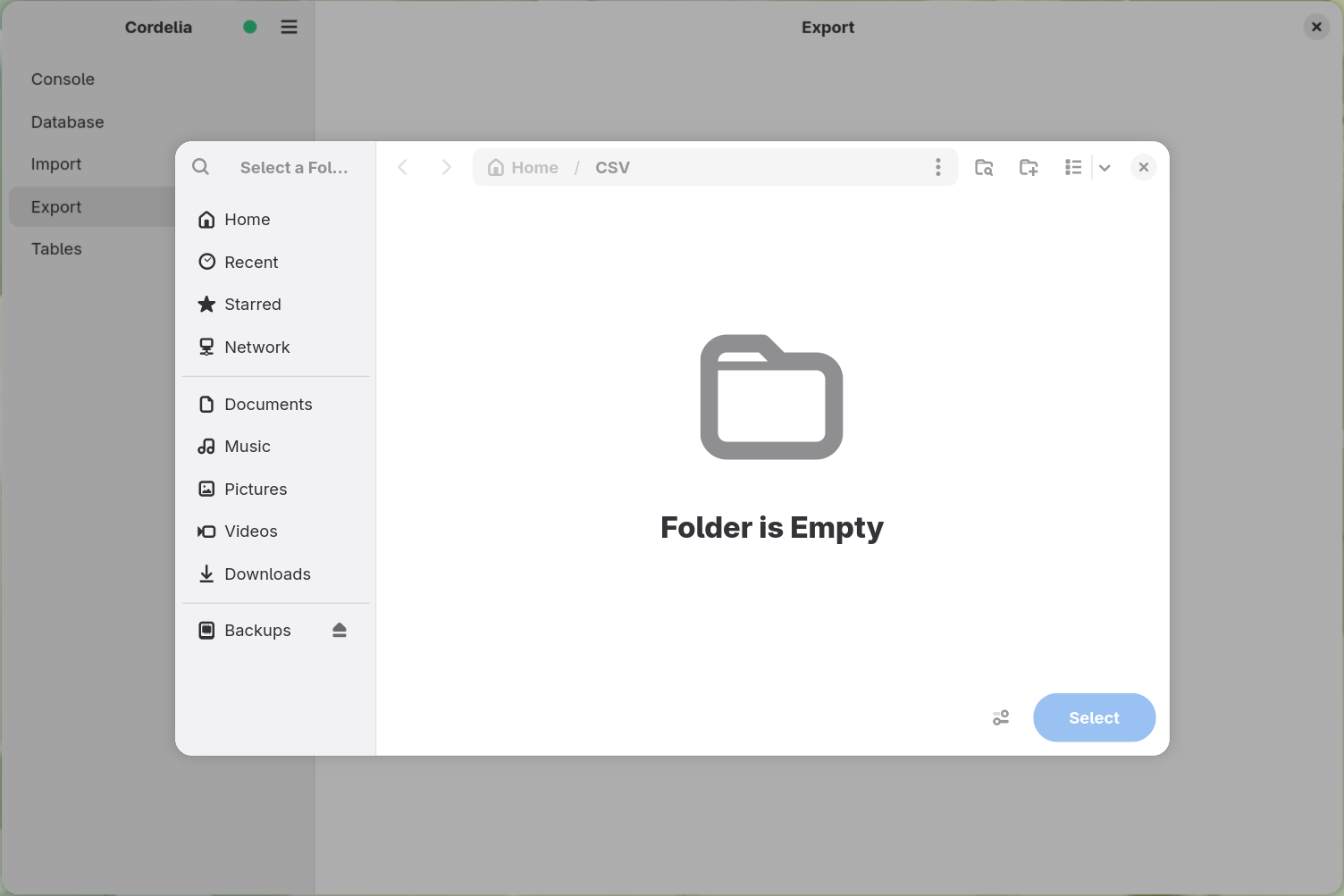
Export CSV asks for a destination folder, then writes one
.csv file per database table into it.
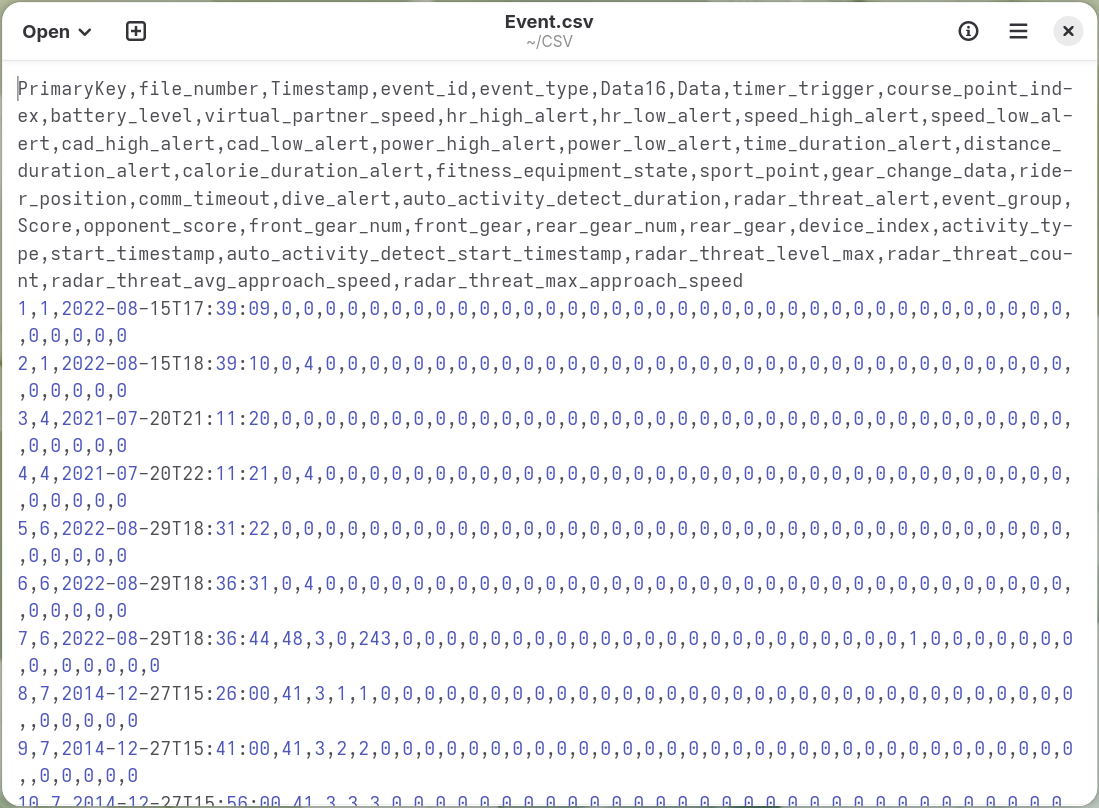
Each file opens directly in a text editor or spreadsheet, with a header row of column names:
Exporting to JSON
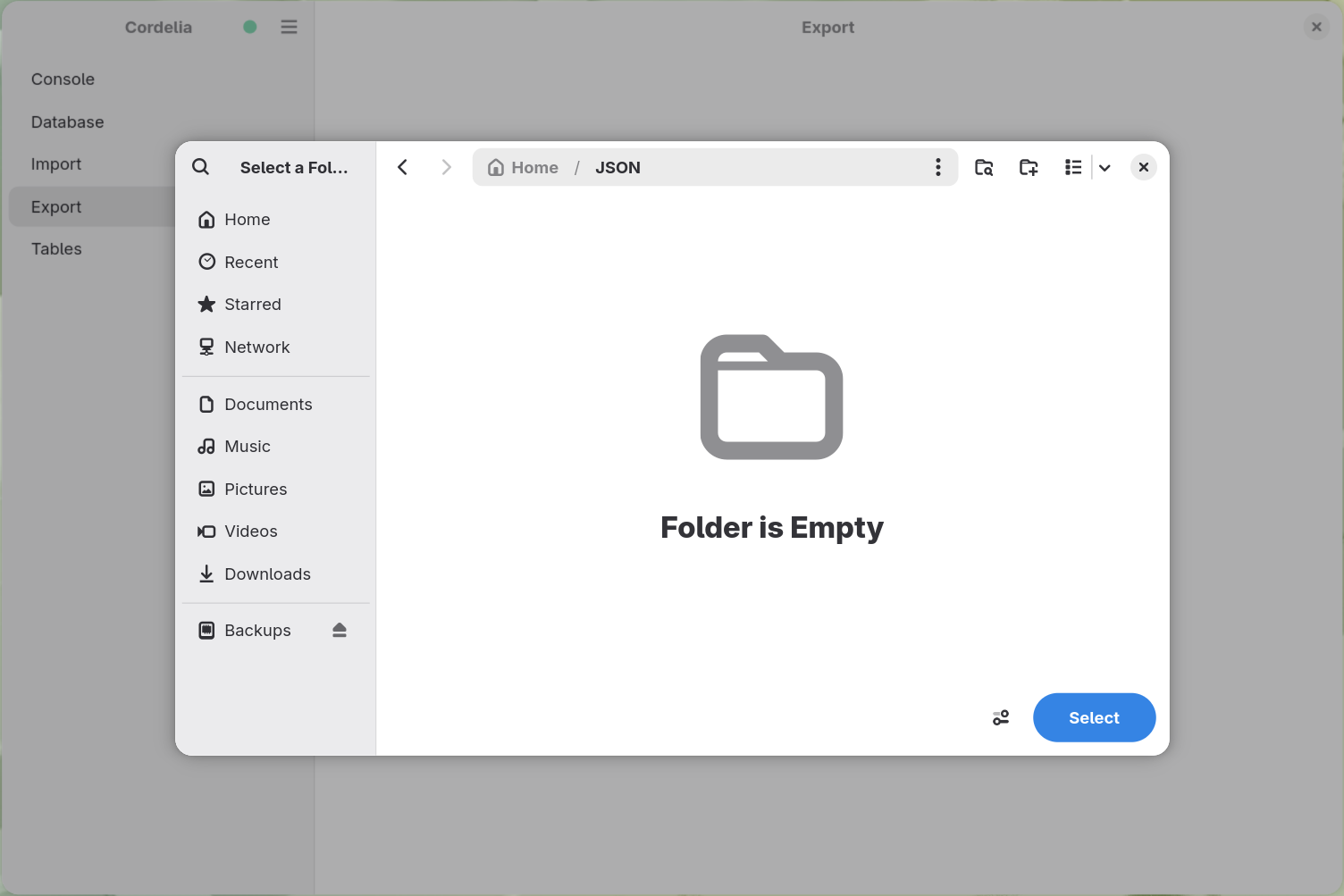
Export JSON also asks for a destination folder, writing one
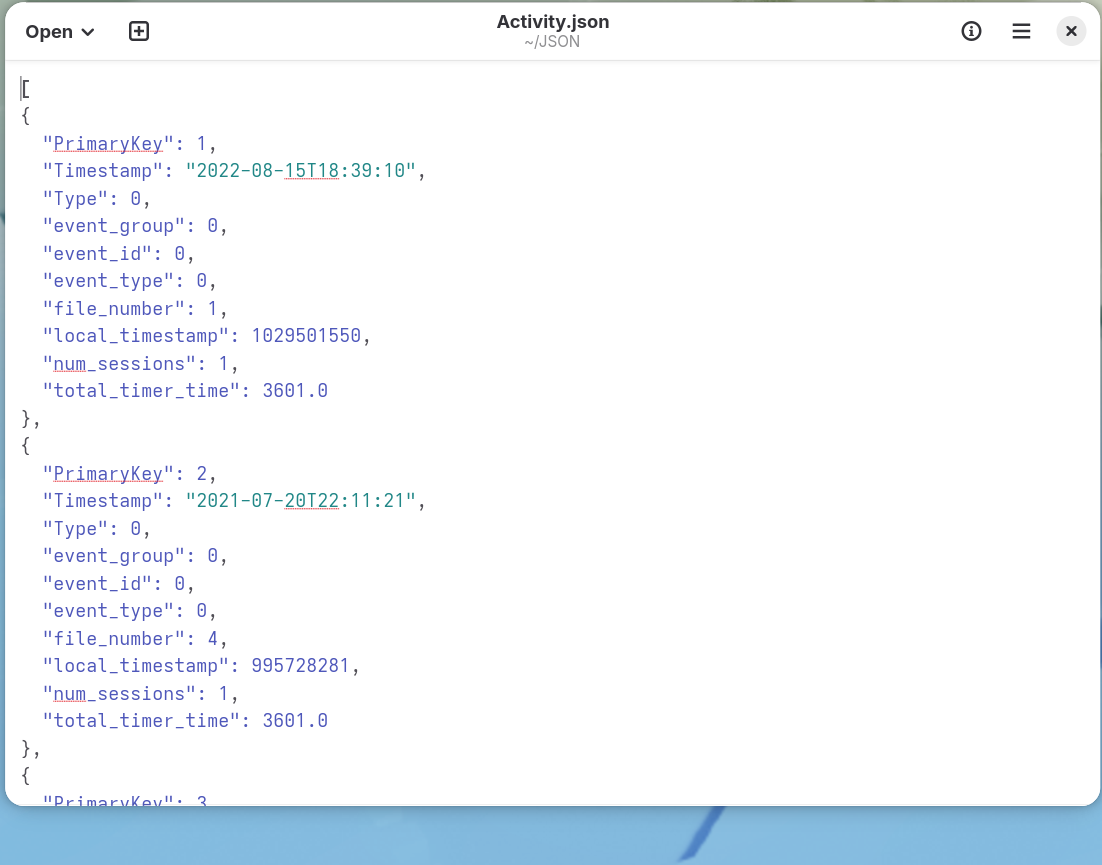
.json file per table as an array of objects, one per row.
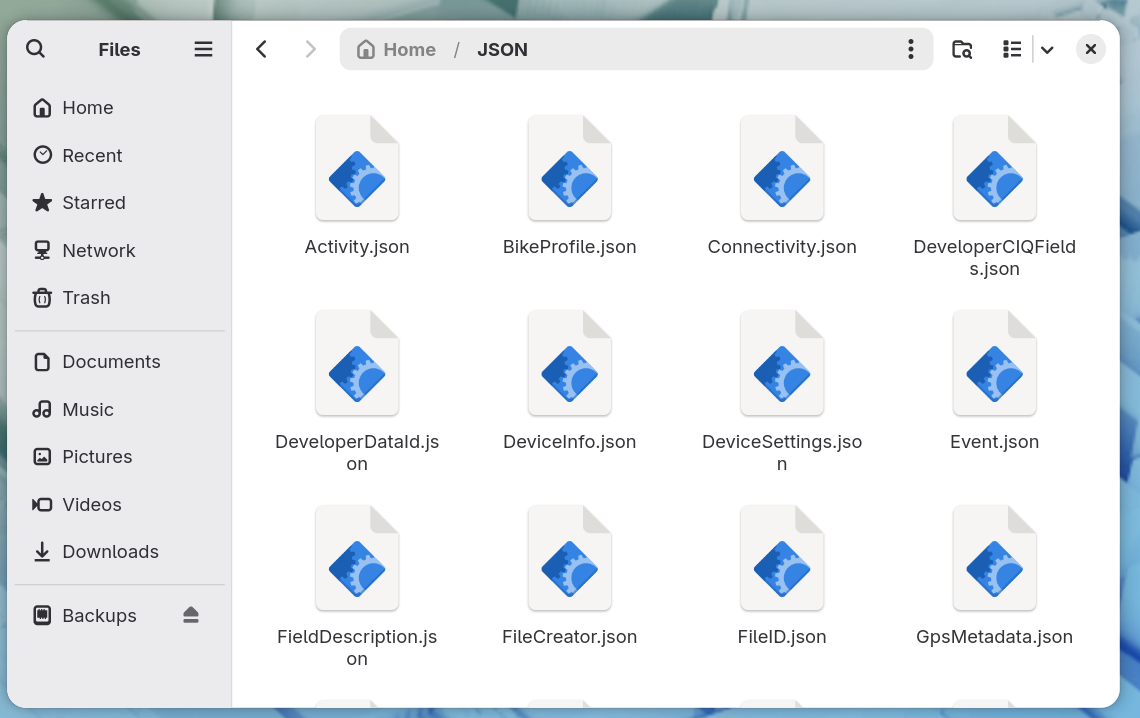
The result is a folder with one file per table, sized according to how much data that table holds:
Exporting to Microsoft Excel
Export XLSX asks for a single destination file instead of a folder;
every table becomes its own sheet in one .xlsx workbook.
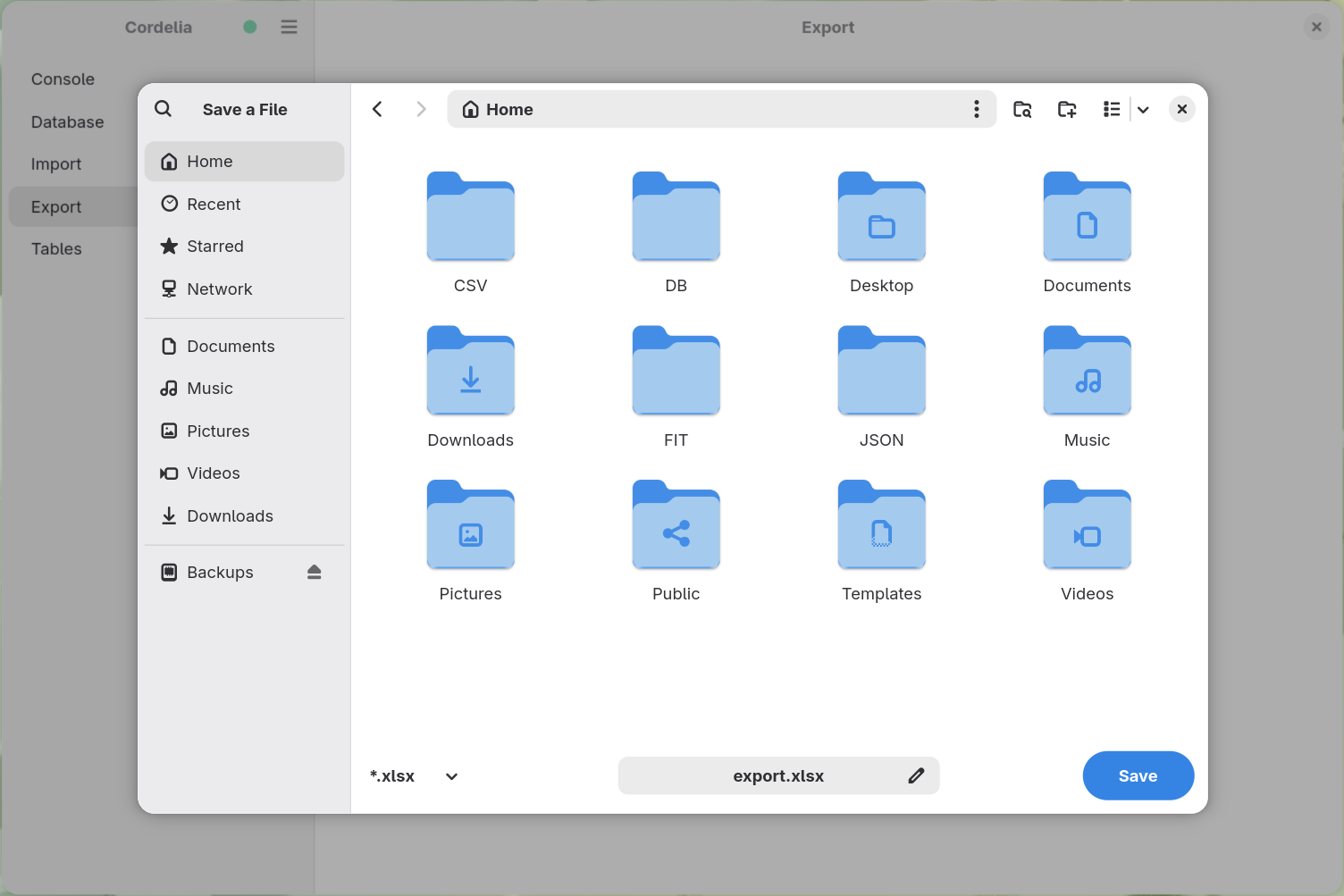
Building a large workbook takes longer than the other formats, so a progress bar appears in the header the same way it does during a large import:
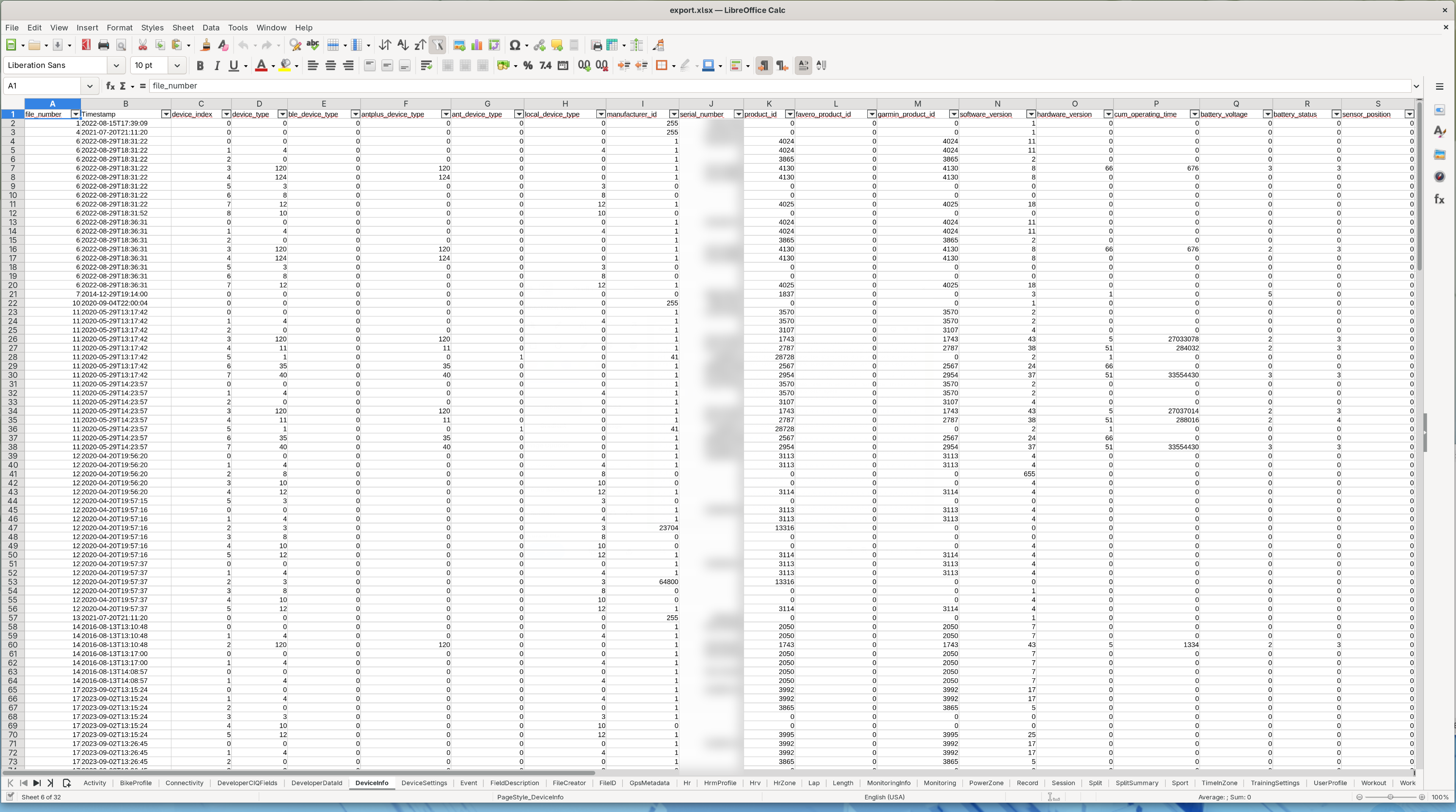
The result opens in any spreadsheet application, with one sheet tab per table: