Viewing the Imported Data
Cordelia isn't available for macOS yet.
Cordelia includes a simple, read-only table browser. To use it:
- Create or open a database.
- Choose Tables in the navigation panel.
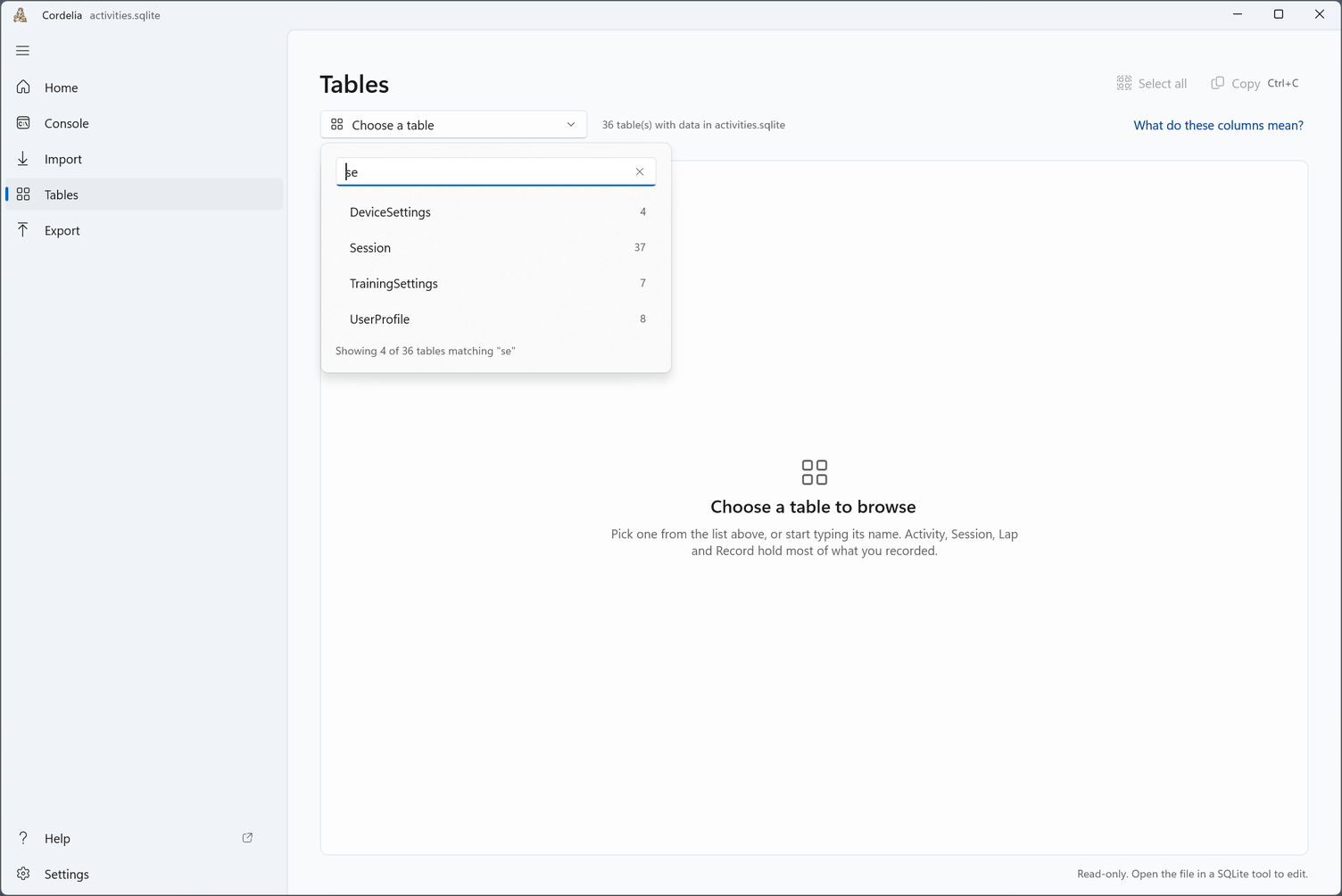
- Pick a table from the dropdown to browse its rows.
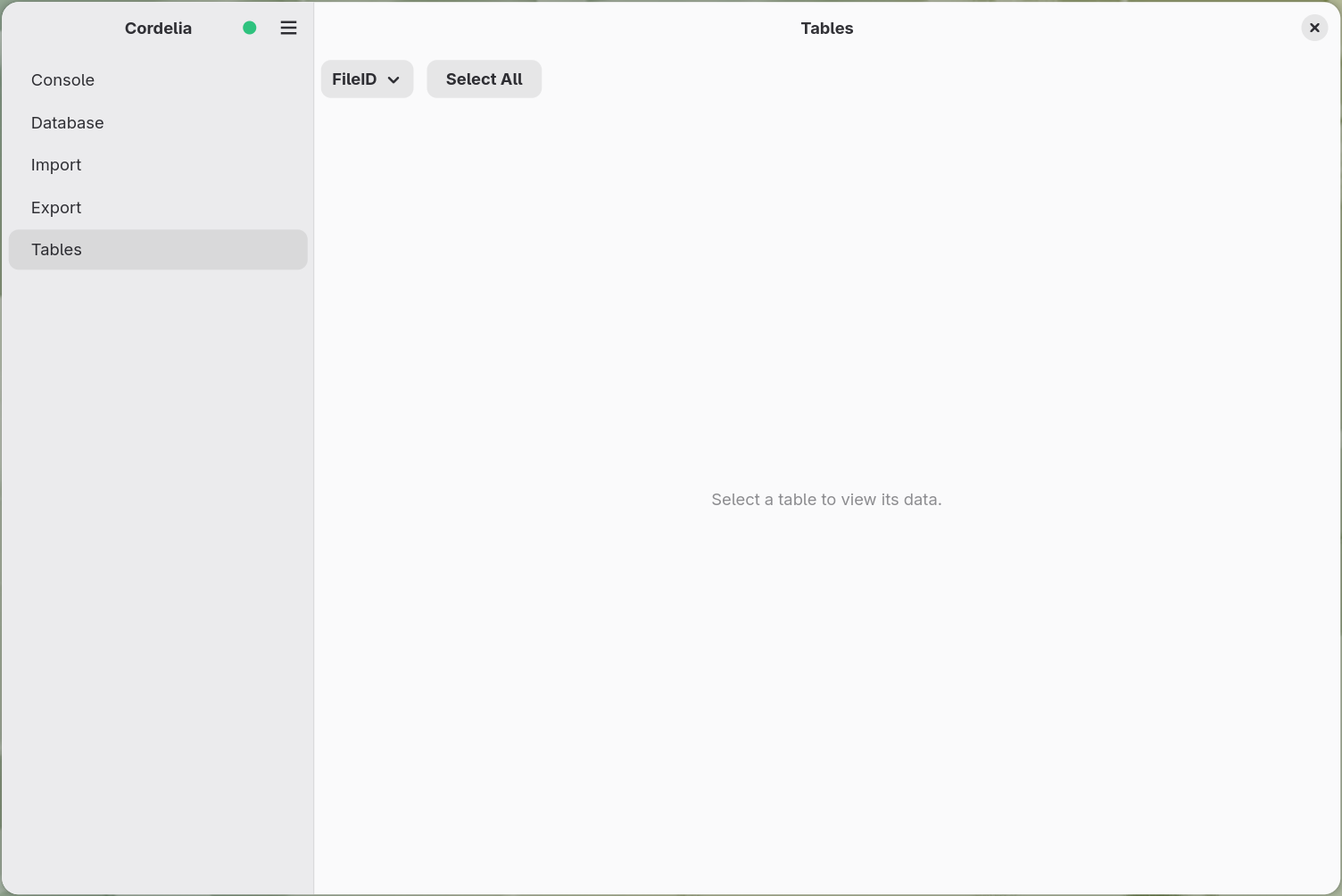
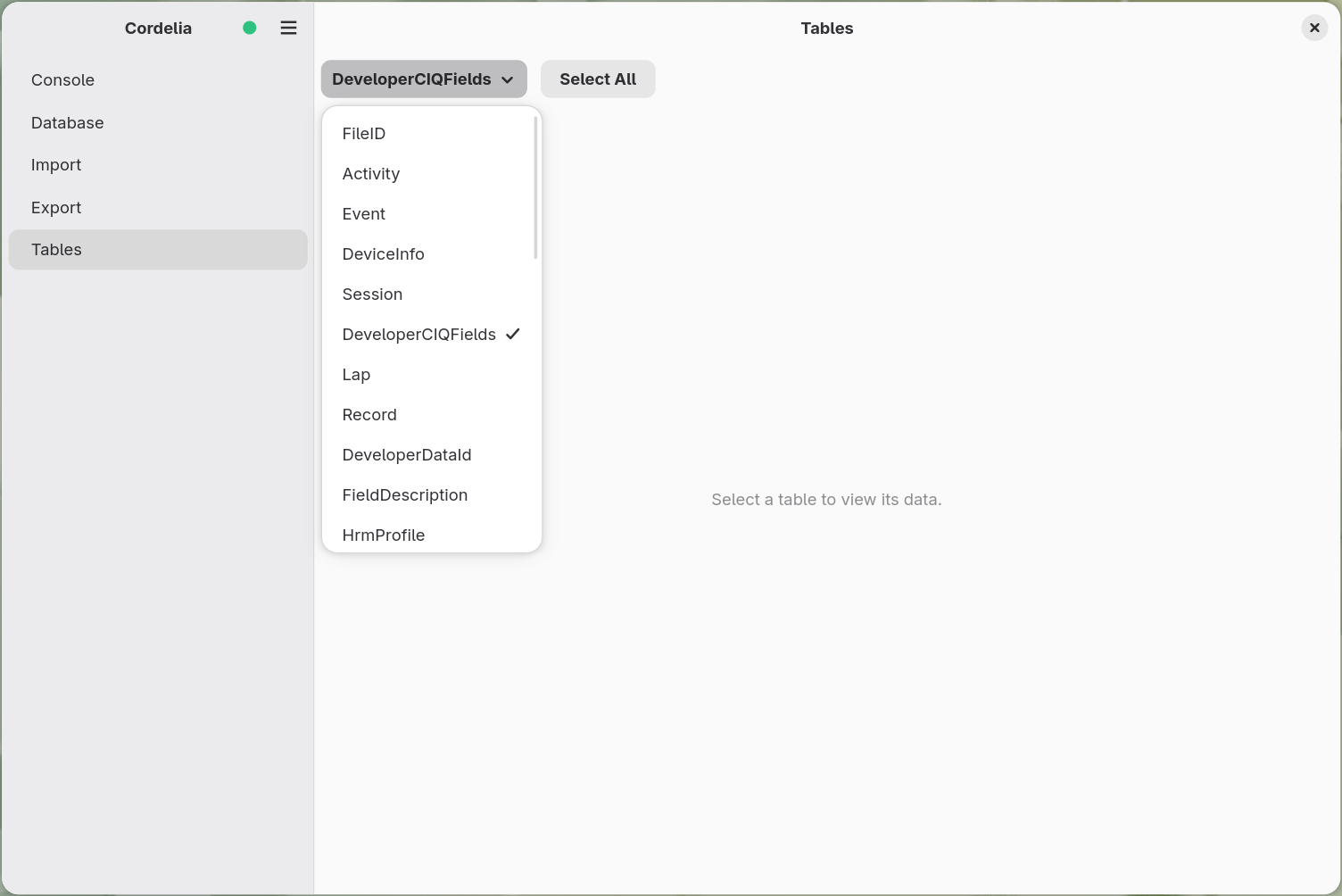
Type part of a name to narrow the list.
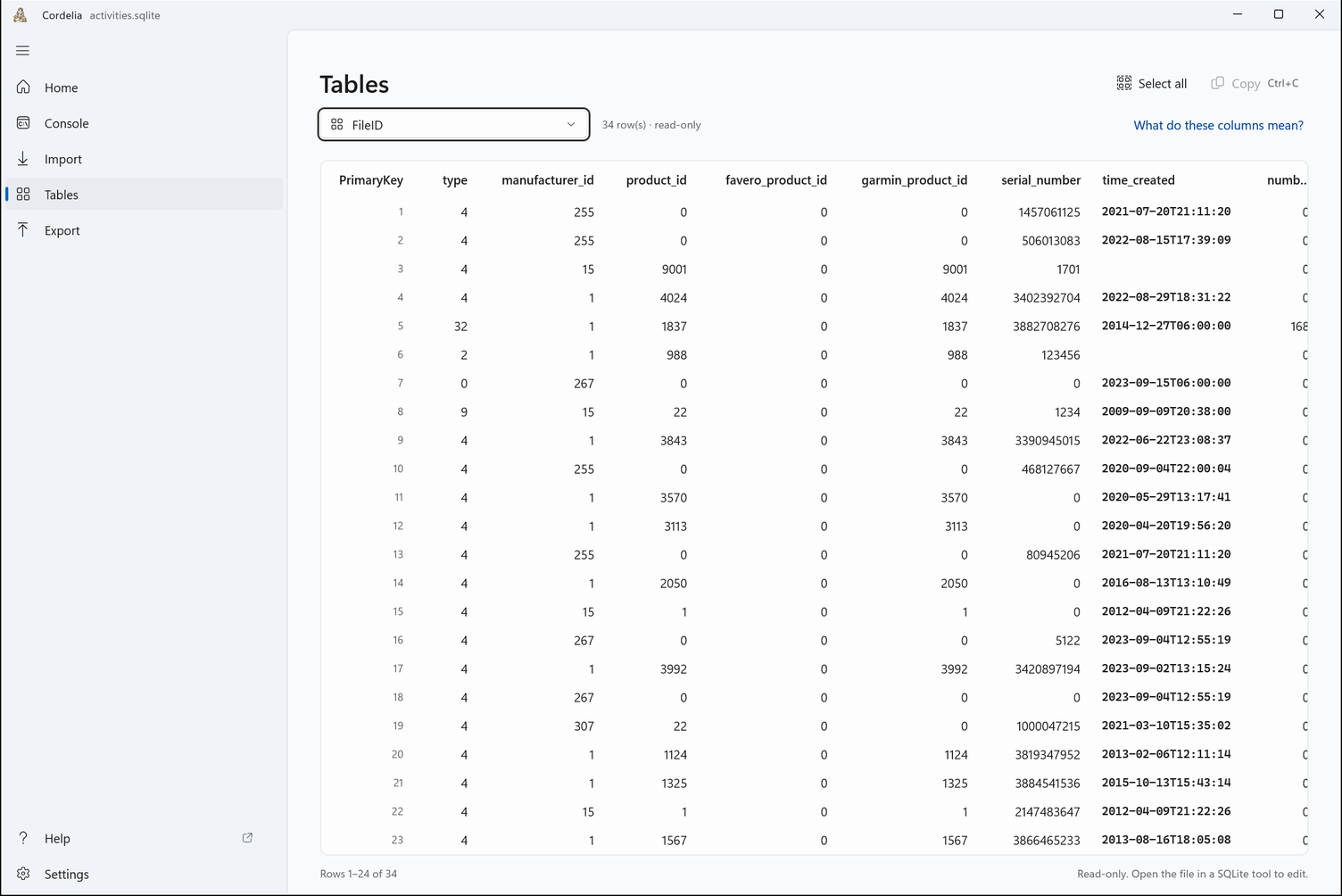
Each table opens as a plain grid: one row per database row, one column per field. Below
is the FileID table, with one row per imported file:
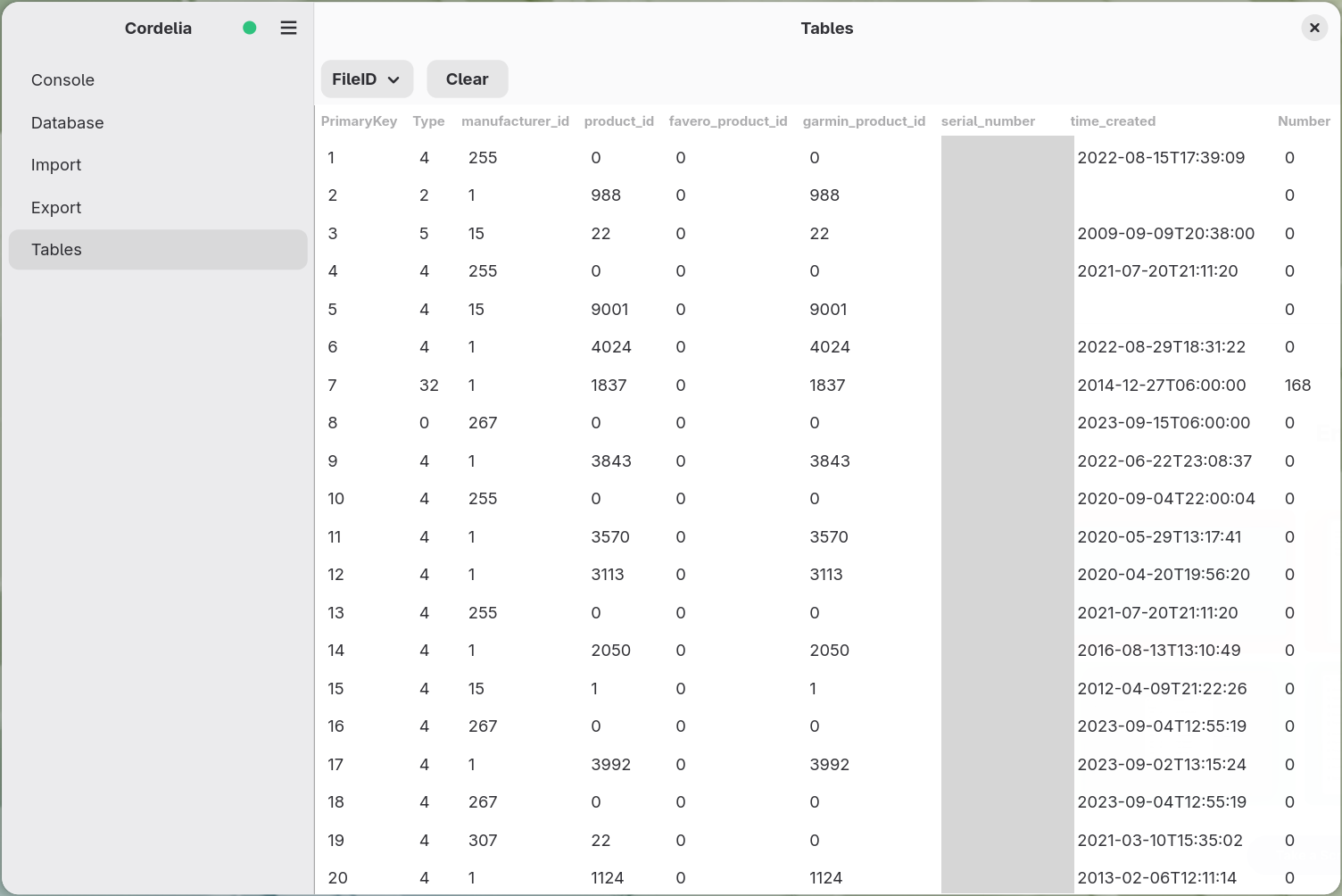
Each table opens as a plain grid: one row per database row, one column per field. Below
is the FileID table, with one row per imported file:
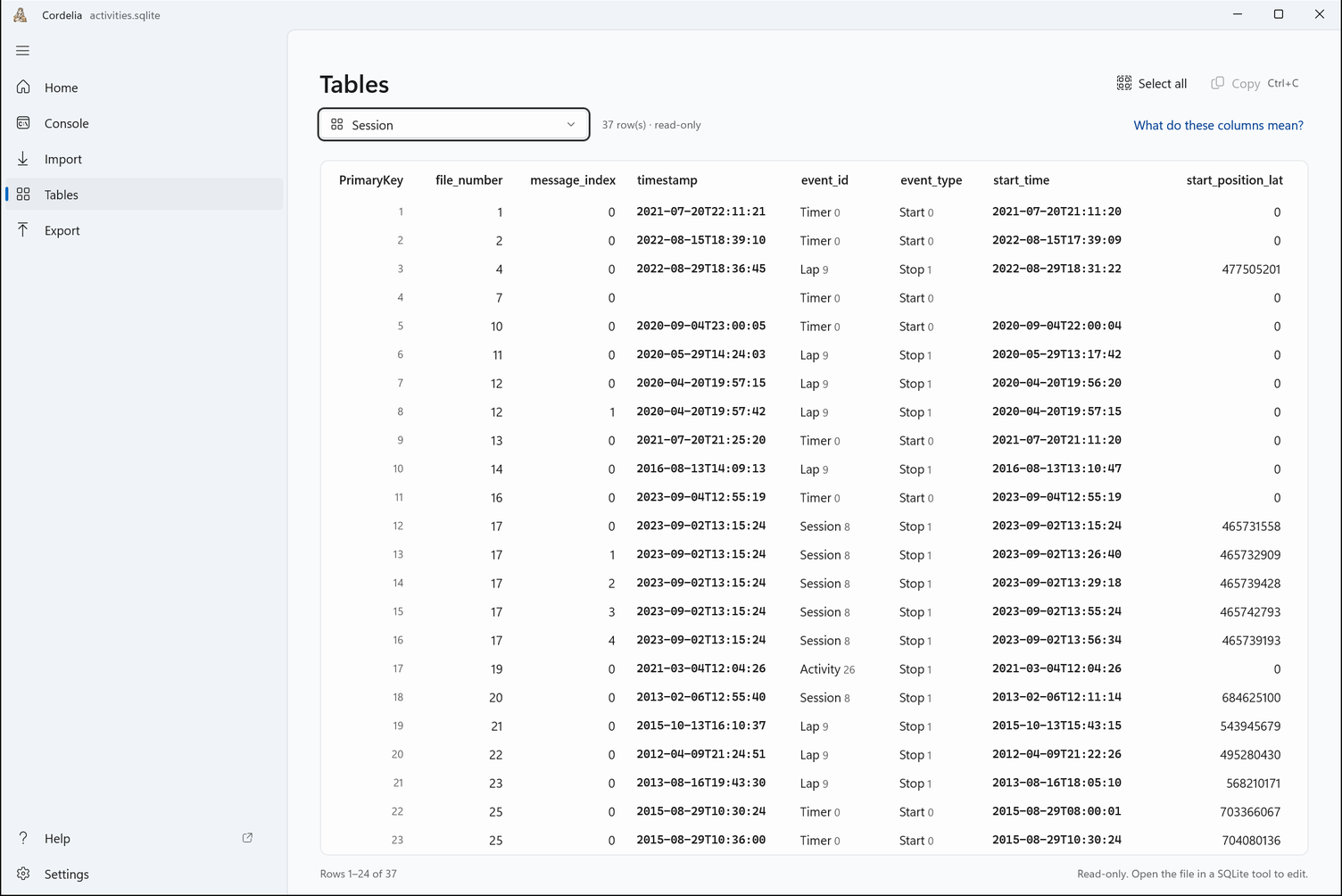
Where a column holds a code, Cordelia shows what it means next to the number.
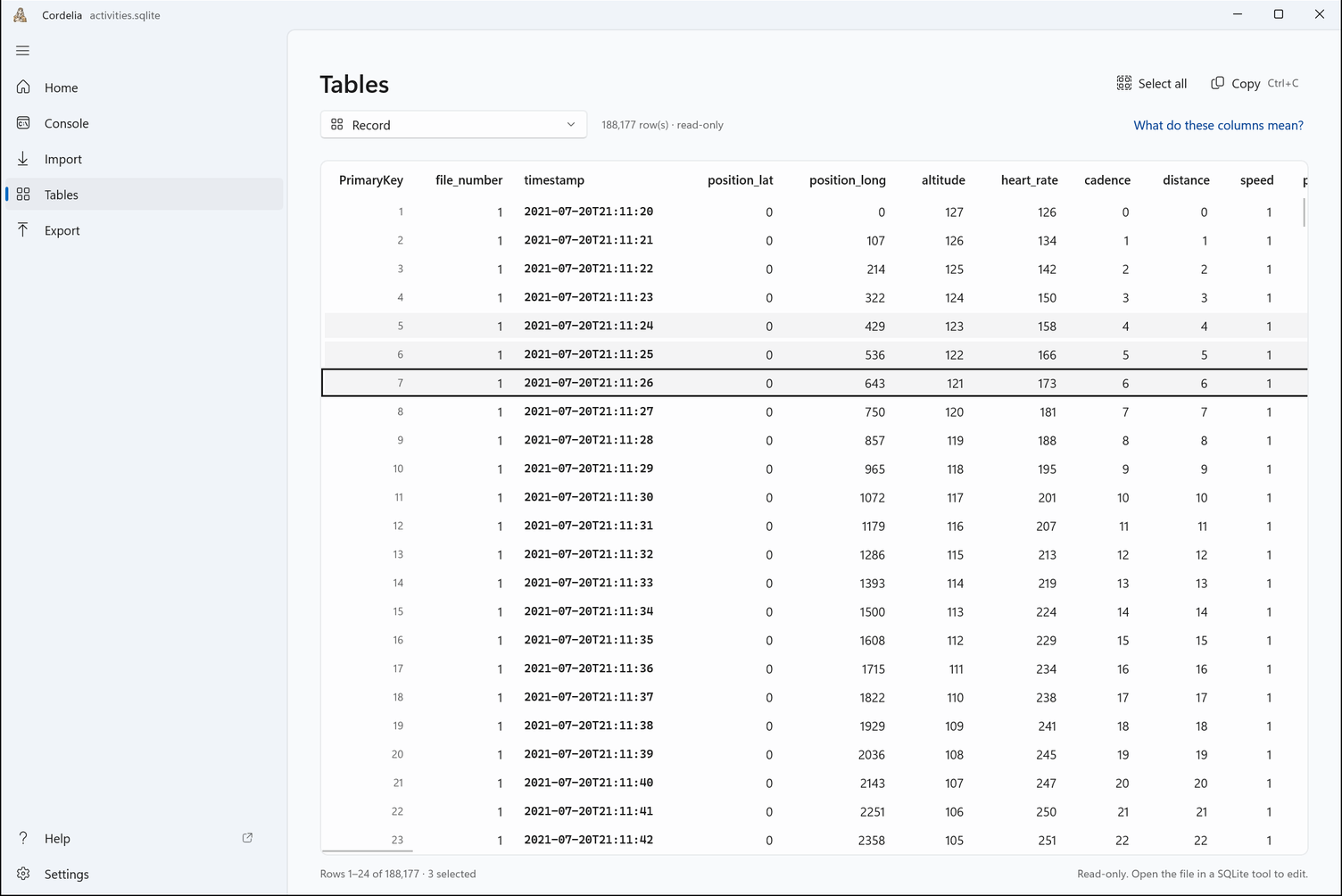
To copy rows, select them and press Ctrl + C. Copy takes up to 100,000 rows; for a whole table, use Export.
See The Data Dictionary for what each table and column actually means.
Other ways to view the data
Cordelia writes a standard SQLite database (see The Cordelia Generated SQLite Database), so you're not limited to Cordelia's own viewer. Any SQLite browser can open the database file. For example, the free, cross-platform DB Browser for SQLite. Some of these tools also let you edit data directly, unlike Cordelia's built-in viewer. See Editing the Data with Other Apps.